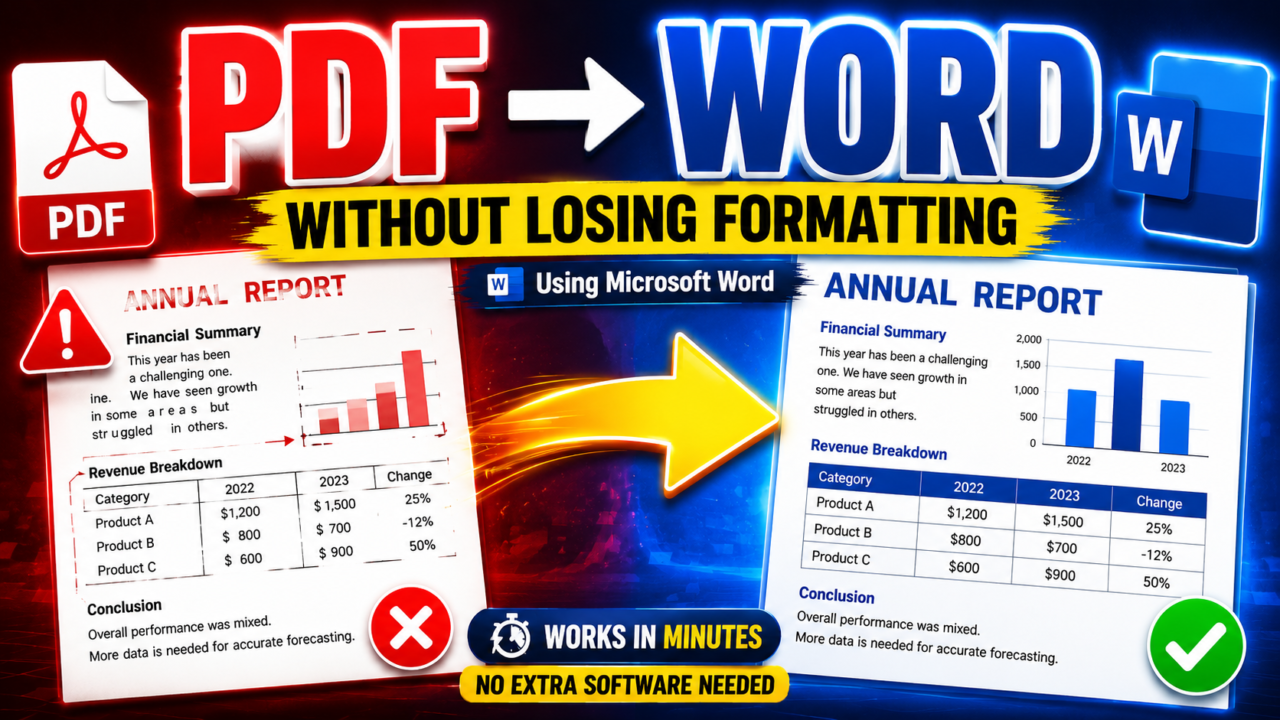
PDF files are great for sharing documents. Yes, Microsoft Word can convert PDFs into editable Word documents directly. Open the PDF in Word, allow conversion, then save as DOCX. Simple PDFs usually preserve formatting well, while complex or scanned PDFs may need cleanup.
Editing them? That’s a different story.
If you’ve ever opened a PDF, desperately needed to change a single line, and realized you had no idea how — you’re not alone. The frustrating part is that Microsoft Word already has a built-in PDF converter most people never think to use. And for a lot of files, it works surprisingly well.
But here’s the thing nobody tells you upfront: some PDFs convert almost perfectly, while others come out looking like a ransom note. Knowing which category yours falls into — and what to do when things go sideways — is what this guide is actually about.
Quick Answer:
Yes, Microsoft Word can convert PDF files into editable Word documents using its built-in PDF Reflow feature. Open the PDF in Word, allow the conversion process to finish, then save the file as a DOCX document. Simple PDFs usually retain formatting well, while scanned or design-heavy PDFs may require manual cleanup.
Time Required: 2–5 minutes
Works On:
– Microsoft Word 2013 and later versions
– Word for Mac
Difficulty Level: Beginner
Here’s what we’ll cover:
- How to convert PDF to Word using Microsoft Word
- When it works well (and when it doesn’t)
- How to fix the most common formatting problems
- How to handle scanned PDFs
- When you’re better off using a different tool
We also tested several PDF types against Word’s converter, so you’ll get real results, not just theory.
Which PDFs Convert Best in Microsoft Word?
| PDF Type | Conversion Quality | Recommended? |
|---|---|---|
| Text-based PDF | Excellent | Yes |
| Resume PDF | Very Good | Yes |
| Invoice PDF | Good | Yes |
| Academic Paper | Very Good | Yes |
| Scanned PDF | Fair | Use OCR |
| Magazine Layout | Poor | No |
| Brochure | Poor | No |
| Interactive Form | Poor | No |
PDF to Word Conversion Summary
| Need | Best Option |
|---|---|
| Edit PDF offline | Microsoft Word |
| Highest accuracy | Adobe Acrobat |
| Scanned PDF | OCR Tool |
| Privacy sensitive files | Microsoft Word |
| Free solution | Microsoft Word |
Can Microsoft Word Actually Convert PDFs?
Yes — and it’s been able to do this for over a decade.
Word can open PDF files directly and convert them into fully editable documents. No extra software, no online tools, no workarounds. This feature is built into:
- Microsoft Word 2013, 2016, 2019
- Microsoft 365 (Word on Windows and Mac)
- Word for Mac
Behind the scenes, Word uses something called PDF Reflow — an engine that reconstructs the PDF’s layout into editable text, headings, tables, and formatting. Simple documents often come out nearly identical to the original. Complex ones… not so much.
How to convert Pdf to Word
How to Convert PDF to Word in Microsoft Word
Quick steps
- Open Microsoft Word
- Click File → Open
- Select the PDF file
- Accept the conversion prompt
- Edit the document
- Save as DOCX
This is the simplest method, and it works on any modern version of Word.
Method 1: Open the PDF Directly in Word
Step 1: Open Microsoft Word: Launch Word like you normally would.
Step 2: Open the PDF file: Go to File → Open → Browse, then select your PDF.
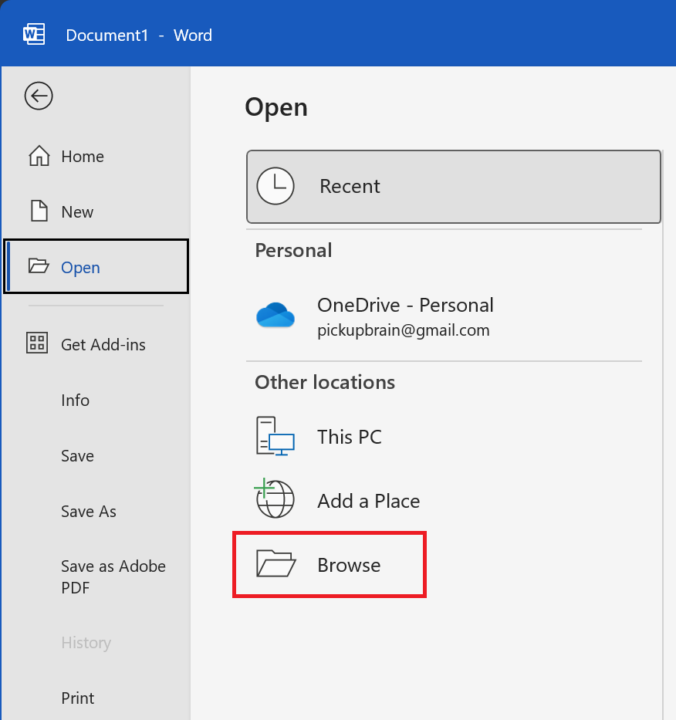
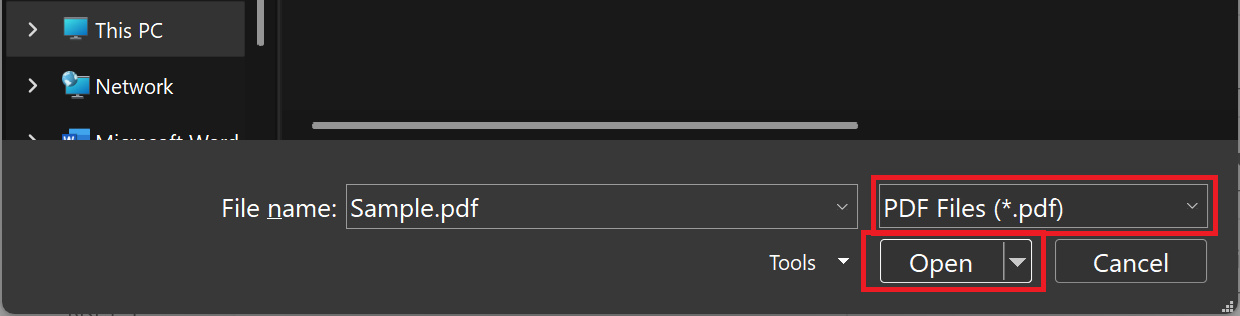
Step 3: Accept the conversion prompt: Word will show a message along the lines of: “Word will now convert your PDF into an editable Word document.” Click OK. Larger files may take a few seconds.
Step 4: Edit the converted document: Once conversion finishes, you can edit text, adjust formatting, insert or move images, and make any changes you need.
Step 5: Save as DOCX: Go to File → Save As and choose Word Document (.docx). This keeps the document fully editable going forward.
Quick Summary:
- Open Microsoft Word
- Click File → Open
- Select the PDF file
- Accept the conversion prompt
- Edit the document
- Save as DOCX
How Accurate Is Microsoft Word to PDF Conversion?
It depends almost entirely on the type of PDF you’re working with. Here’s what we found when we tested several real documents:
| PDF Type | Conversion Quality | Notes |
|---|---|---|
| Simple text document | Excellent | Almost perfect formatting |
| Basic tables | Very good | Minor spacing issues |
| Resume/CV | Good | Fonts may shift slightly |
| Complex brochure | Average | Layout problems common |
| Scanned PDF | Poor without OCR | Text may become an image |
| Academic paper | Very good | Headers/footnotes mostly preserved |
| Forms | Mixed | Interactive fields often break |
The pattern is pretty consistent: the simpler the layout, the better the result. Standard business documents — reports, contracts, invoices, essays — tend to convert well. The moment you throw in unusual fonts, multi-column layouts, or heavy graphics, Word starts to struggle.
PDF Types Microsoft Word Converts Best
Word is genuinely impressive when the PDF contains:
- Standard fonts (Arial, Calibri, Times New Roman)
- Single-column layouts
- Selectable (not scanned) text
- Minimal decorative graphics
Think: business reports, letters, legal contracts, academic papers. These are Word’s sweet spot.
PDF Files That Convert Poorly in Word
Things tend to fall apart with:
- Scanned PDFs (more on this below)
- Multi-column magazine or brochure layouts
- Embedded custom or decorative fonts
- Complex nested tables
- Interactive form fields
This is where most of the frustration comes from — and where you’ll need either manual cleanup or a dedicated PDF tool.
How to Convert Scanned PDF Files to Word
Here’s something a lot of PDF conversion guides gloss over, but it matters a lot in practice.
There are two fundamentally different types of PDFs:
- Normal PDFs contain actual selectable text. Word can read and convert these.
- Scanned PDFs are essentially just images of pages. Word sees them the way you’d see a photograph — it can display them, but it can’t reliably edit what’s inside.
How to tell which one you have: Try selecting text inside the PDF. If you can highlight words, it’s a normal PDF. If your cursor just draws a box with nothing selected, it’s probably scanned.
Can Word convert scanned PDFs? Sometimes. Word has limited built-in OCR (Optical Character Recognition) that can extract text from scanned pages, but the results vary a lot depending on:
- Scan quality and resolution
- How straight the text is
- Font clarity
- Whether there’s handwriting involved
For best results with scanned documents, use high-contrast black-on-white scans at 300 DPI or higher. Even then, always proofread the output carefully — paragraphs can split oddly, tables often disappear, and the occasional strange symbol tends to sneak in.
If OCR accuracy really matters to you, a dedicated tool like Adobe Acrobat will do a noticeably better job.
Common PDF to Word Conversion Problems (and How to Fix Them)
This is the part most articles rush past. Here are the most common issues and what actually works.
Problem 1: Formatting Gets Destroyed
PDFs are designed for visual consistency, not for editing. When Word reconstructs the layout, it has to guess at spacing, font sizes, column widths, and margins — and sometimes it guesses wrong.
Fixes to try:
- Switch to Layout view
- Reapply paragraph styles
- Adjust spacing manually
- Replace fonts that didn’t carry over correctly
- Simplify headers and footers
Problem 2: Images Move or Disappear
Floating images are the usual culprit here. PDFs handle image positioning differently from Word, so images can drift, stack on top of text, or vanish entirely during conversion.
Fix: Right-click the image, choose Wrap Text, and select In Line with Text. This anchors the image to the text flow and usually clears up positioning issues.
Problem 3: Tables Break Apart
Tables are probably the single hardest thing to convert accurately. Nested tables especially tend to fall apart.
Fixes to try:
- Use AutoFit Contents on broken tables
- For heavily damaged tables, it’s often faster to just rebuild them manually
- Merge cells that got split incorrectly
Problem 4: Fonts Change
If Word can’t find the original font on your system, it substitutes something else — which shifts spacing and can throw off the entire layout.
Fix: Install the missing font if you have access to it. Otherwise, do a global font replacement: press Ctrl + H, then use Replace Fonts to swap it for something consistent.
Problem 5: The Document Opens Blank
This one’s alarming, but it’s usually caused by:
- A corrupted or password-protected PDF
- An unsupported internal structure
- An extremely large file
Fixes: Re-save the PDF from the original source, remove password protection, or update your version of Microsoft Word.
Troubleshooting Quick Reference:
| Problem | Likely Cause | Best Fix |
|---|---|---|
| Broken formatting | Complex layout | Simplify and reapply styles |
| Missing text | OCR failure | Use dedicated OCR tool |
| Images misplaced | Floating objects | Set to inline text wrap |
| Tables broken | Nested structure | Rebuild the table |
| Blank document | Corrupted PDF | Re-save the PDF |
| Weird symbols | Font encoding issues | Replace fonts globally |
How to Convert PDF to Word Without Losing Formatting
No converter — Word or otherwise — is perfect. But you can dramatically improve your results with a bit of preparation.
Before you convert:
- Always use the original PDF, not a screenshot or re-exported version
- If possible, flatten layers and reduce transparency effects
- Stick to standard fonts in source documents when you have control over them
- For very large files, split the PDF into sections and convert each one separately — this reduces both conversion errors and crashes
During conversion:
Let Word finish the process completely before touching anything. Clicking around mid-conversion is a reliable way to end up with a mess.
After conversion:
- Check tables first — they’re the most likely to have issues
- Review page breaks
- Verify fonts are rendering correctly
- Save as DOCX once you’re happy with it
- Proofread anything that went through OCR
For more document productivity tips, browse our Microsoft Word tutorials.
A Note on Privacy: Why Local Conversion Matters
This matters especially for business contracts, resumes, legal documents, invoices, and confidential company files where uploading sensitive PDFs to unknown third-party servers may create privacy or compliance concerns.
It’s worth mentioning something most conversion guides skip entirely. A huge number of people upload sensitive documents — contracts, resumes, financial records, legal files — to online PDF converters without thinking about where that data goes.
Converting inside Microsoft Word keeps everything on your machine. No uploads, no third-party servers, no wondering whether your contract just got stored somewhere you didn’t intend.
Microsoft Word vs. Online PDF Converters:
| Feature | Microsoft Word | Online Converters |
|---|---|---|
| Free | Yes (if you own Word) | Usually limited |
| Offline | Yes | No |
| Privacy | Better | Upload required |
| OCR quality | Limited | Often better |
| Formatting accuracy | Good | Varies |
| Large files | Handles well | Sometimes restricted |
| Watermarks | No | Often yes |
When Microsoft Word Isn’t the Right Tool
Word is excellent for everyday PDFs. But there are cases where it’s genuinely not the best choice:
- Heavily scanned documents where OCR accuracy matters
- Design-heavy files like brochures, magazines, or architectural plans
- Interactive forms — interactive fields almost never survive conversion intact
- Professional publishing files where pixel-perfect layout preservation is non-negotiable
In those situations, consider:
- Adobe Acrobat — the gold standard for PDF conversion, particularly for OCR and form preservation (though it’s expensive)
- Smallpdf or ILovePDF — good for quick one-off conversions if privacy isn’t a concern
- Google Docs — surprisingly useful for simple text PDFs, especially if you need to share or collaborate quickly
How We Tested Word’s PDF Conversion
To evaluate Microsoft Word’s PDF conversion accuracy, we tested multiple document types including resumes, academic papers, invoices, brochures, scanned PDFs, and forms using Microsoft Word 365 and Word 2019.
We specifically checked:
– formatting preservation
– table accuracy
– font rendering
– image positioning
– OCR quality
– conversion speed
Real-World Test: Converting a Modern Resume
We ran a modern resume PDF through Word — one with icons, two columns, custom section dividers, and a non-standard font.
Results:
- Text converted correctly ✓
- Icons shifted slightly
- Column layout required manual adjustment
- Font substitution changed spacing throughout
Total cleanup time: about 5 minutes.
That’s still dramatically faster than retyping the entire resume from scratch, which is the point. Word won’t always give you perfection, but it usually gives you a solid starting point.
The Best Workflow for Reliable Conversions
Follow this sequence consistently and you’ll avoid most headaches:
Before conversion:
- Save and verify the original PDF
- Confirm text is selectable (not scanned)
- Check scan quality if OCR is involved
During conversion:
- Open directly in Word
- Let PDF Reflow finish completely
- Don’t interact until it’s done
After conversion:
- Inspect tables first
- Check page breaks and font rendering
- Proofread any OCR text carefully
- Save as DOCX
Frequently Asked Questions
Yes. If you already have Microsoft Word installed, you can open any PDF and save it as an editable DOCX file without paying for a separate converter.
Not always. Simple documents usually come out very clean. Complex layouts, scanned pages, and custom fonts typically need some manual work afterward.
Because PDFs are built for consistent visual display — not editing. When Word converts them, it has to reconstruct layout elements from scratch, and it doesn’t always get the spacing, fonts, or column structures exactly right.
Sometimes. Word includes limited OCR support, but results vary heavily based on scan quality. For anything important, a dedicated OCR tool will produce much cleaner output.
For privacy and offline use, yes — it’s hard to beat. For advanced OCR or complex layout preservation, specialized tools still have an edge.
Final Verdict
Microsoft Word is one of the most underrated PDF converters out there — mostly because people don’t think to use something they already have.
For everyday documents, it’s fast, private, offline, and genuinely accurate. If you’re converting reports, contracts, essays, resumes, or standard business documents, Word will handle most of them with minimal cleanup.
Where it earns an asterisk: scanned PDFs, design-heavy layouts, and professional publishing files are where Word’s limitations start showing. In those cases, you’ll either need manual cleanup time or a dedicated PDF tool.
The key is knowing which camp your document falls into before you start. Once you do, converting PDFs stops being a frustrating guessing game — and starts being a five-minute task.
If you regularly work with PDFs, learning how Microsoft Word handles PDF conversion can save hours of manual editing — especially for resumes, reports, contracts, and business documents.
Try converting one of your own PDFs now and compare the results. You may be surprised how well Word handles it.

C P Gupta is a YouTuber and Blogger. He is expert in Microsoft Word, Excel and PowerPoint. His YouTube channel @pickupbrain is very popular and has crossed 9.9 Million Views.