Start page numbers on page 3: the section-break method
To start page numbering on page 3 in Microsoft Word, insert a section break at the end of page 2, unlink the new section’s header or footer, and add page numbers to the third page. You can choose whether page 3 displays the number 1 or 3. This guide explains each step and how to fix common numbering problems.
Expected result: pages 1–2 show no page number, while page 3 displays 1 (or 3 if you choose continuous numbering). These steps are intended for desktop Word, where section-specific header and footer controls are available.
Before you begin: section breaks versus page breaks
Save a copy first. Turn on formatting marks (Home > ¶) to locate existing page and section breaks. A regular page break does not let you unlink headers or footers; you need a Next Page section break. If page 3 already begins a new section, reuse that break rather than adding a duplicate.
Step 1: Insert Page Numbers
- Go to Insert tab > Click Page Number in the Header & Footer section.
- Choose where you want the page number to appear (e.g., Bottom of Page → Plain Number 2).

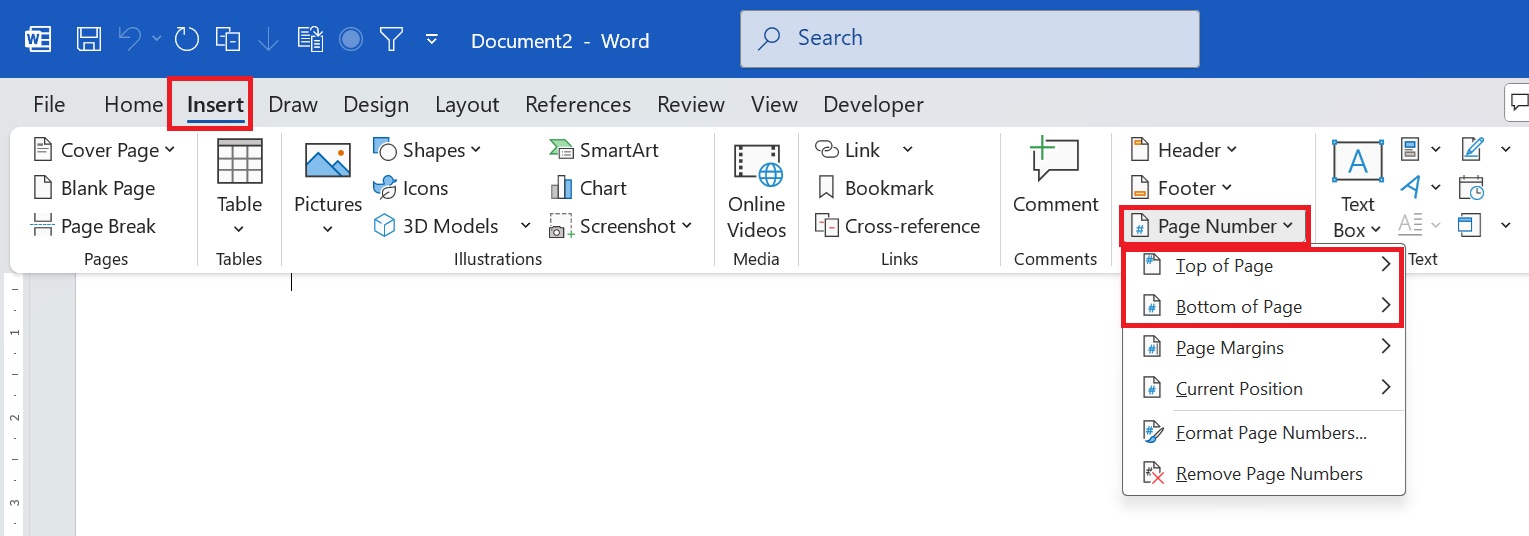
At this point, page numbers may appear on all pages, including the first two. After creating and unlinking the new section, remove numbering from the first section only.
Step 2: Insert a Section Break Before Page 3
- Place the cursor immediately before the first character that should appear on page 3. If there is already a manual page break at this point, remove or replace it carefully to avoid creating an extra blank page.
- Click the Layout tab > Click Breaks > Select Next Page.

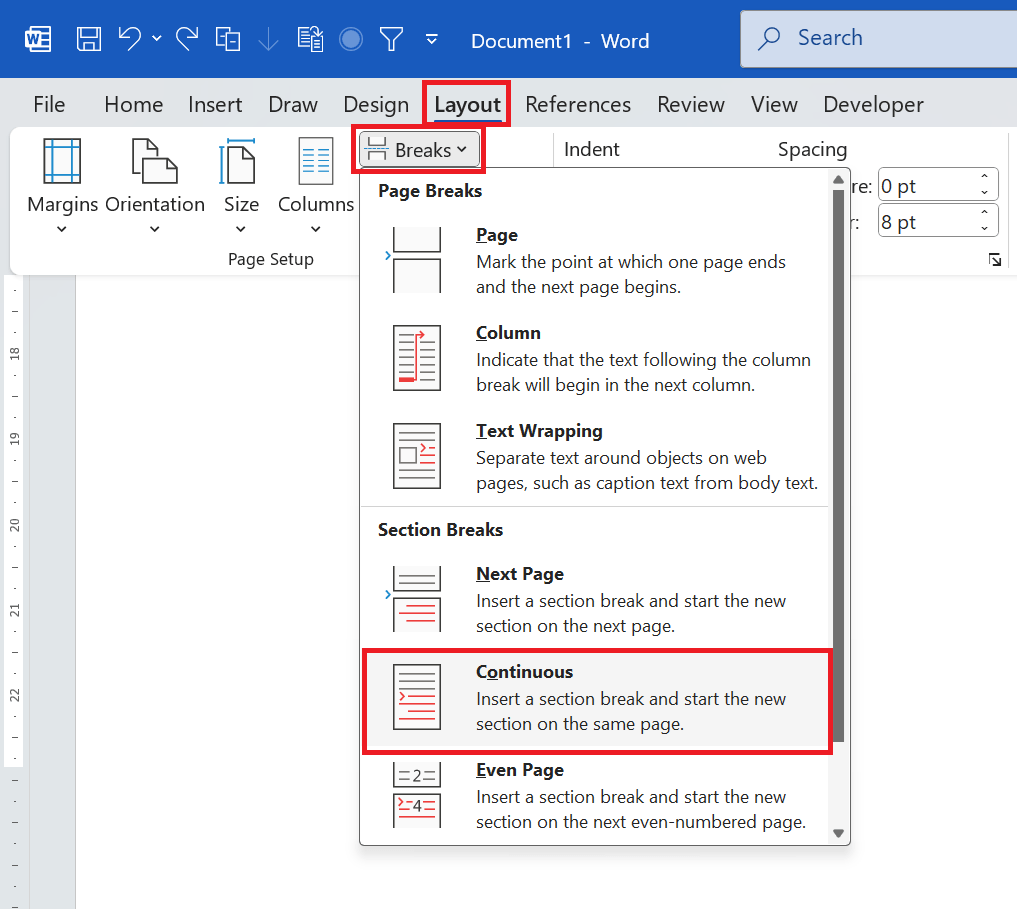
This creates a Next Page section break, allowing different page-number formatting for the first two pages and the rest of the document. A Continuous break may leave the new section on the same page, so Next Page is the more predictable choice here.
Step 3: Unlink the Sections
- Double-click inside the footer or header of page 3.
- Click Header & Footer → Click Link to Previous to disable it (if it is highlighted).

- Unlink the header or footer that contains the page number. If you plan to edit both header and footer content independently, unlink both. Check separate first-page or odd/even variants if enabled.
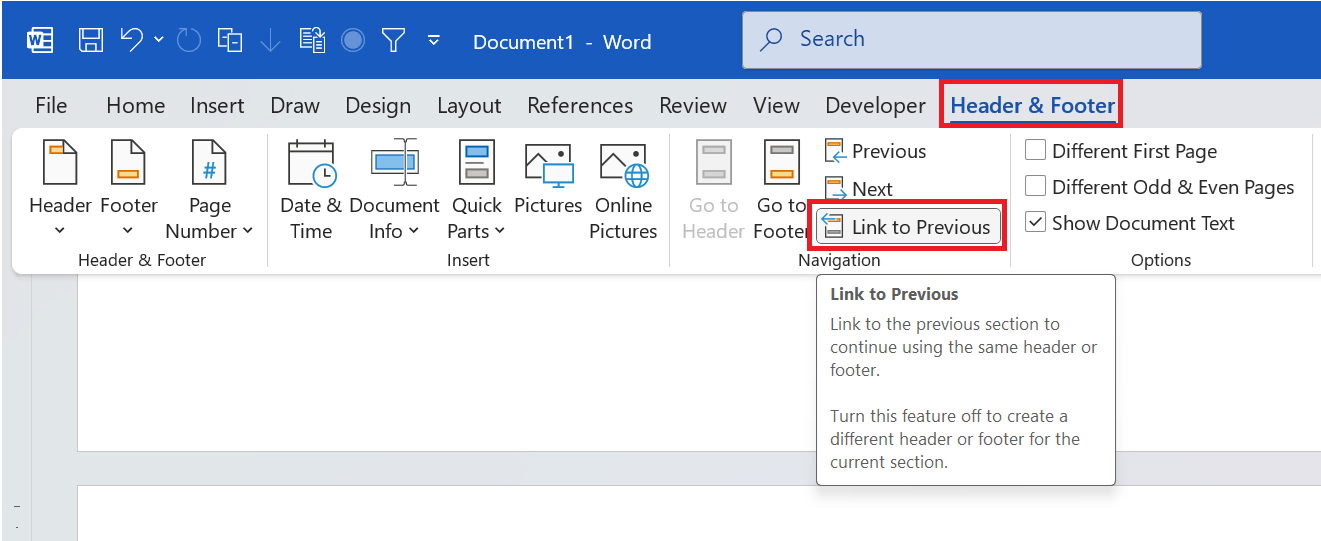
Unlink the same header or footer that contains the page-number field. Word manages header and footer links separately. If Different First Page or Different Odd & Even Pages is enabled, check the relevant variants too; unlinking only the main footer may not be sufficient.
Step 4: Format Page Numbering to Start from 1
- Double-click the page number on page 3.
- Click Page Number → Format Page Numbers.

- In the Start at box, type 1 → Click OK.

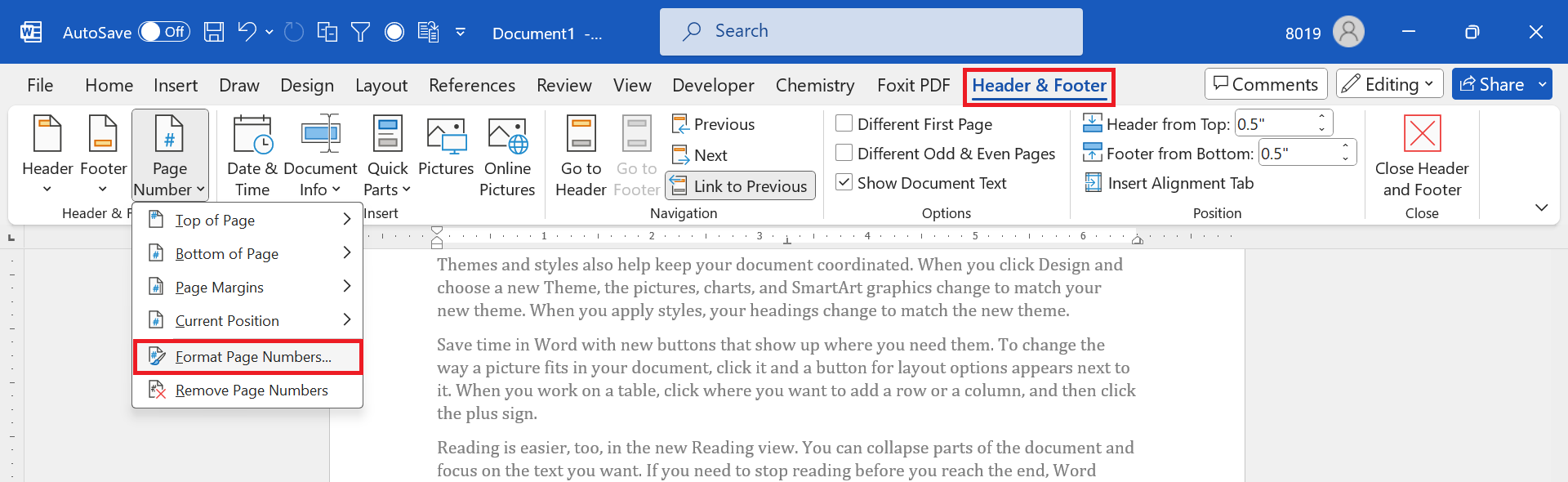
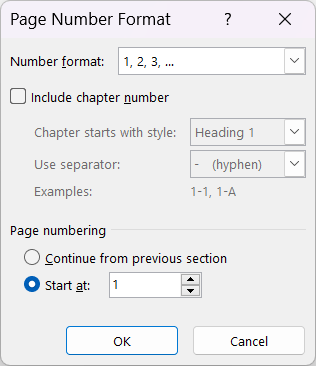
With the new section set to Start at 1, its first page displays 1. To display 3 on physical page 3 instead, choose Start at 3. The Continue from previous section setting depends on numbering in the preceding section and should not be assumed to produce 3 in every document.
Step 5: Remove Page Numbers from the First Two Pages
- Scroll to page 1 and 2.
- Double-click inside the footer/header.
- Click on the page number and press Delete.
Because the appropriate header or footer in Section 2 has been unlinked, removing the PAGE field in Section 1 should leave numbering in Section 2 intact. Delete the page-number field, not the section break. If Different First Page or Different Odd & Even Pages is enabled, check each relevant header/footer variant separately.
Troubleshooting & FAQs
Page numbers are still showing on the first two pages.
Check that page 3 begins Section 2 and that Link to Previous is off in the header/footer variant containing the page-number field. Then remove only the page-number field in Section 1. If a number remains on page 1, check the Different First Page header/footer; if it appears only on even pages, check Different Odd & Even Pages.
Page numbering does not start from 1 on page 3.
✔️ Check Page Number Format settings (Step 4) and ensure “Start at: 1” is selected.
I want Roman numerals for the first two pages and normal numbers from page 3.
✔️ Go to Header & Footer → Select the section for pages 1-2.
✔️ Click Page Number → Choose Top of Page / Bottom of Page and select location of page number as per your need. 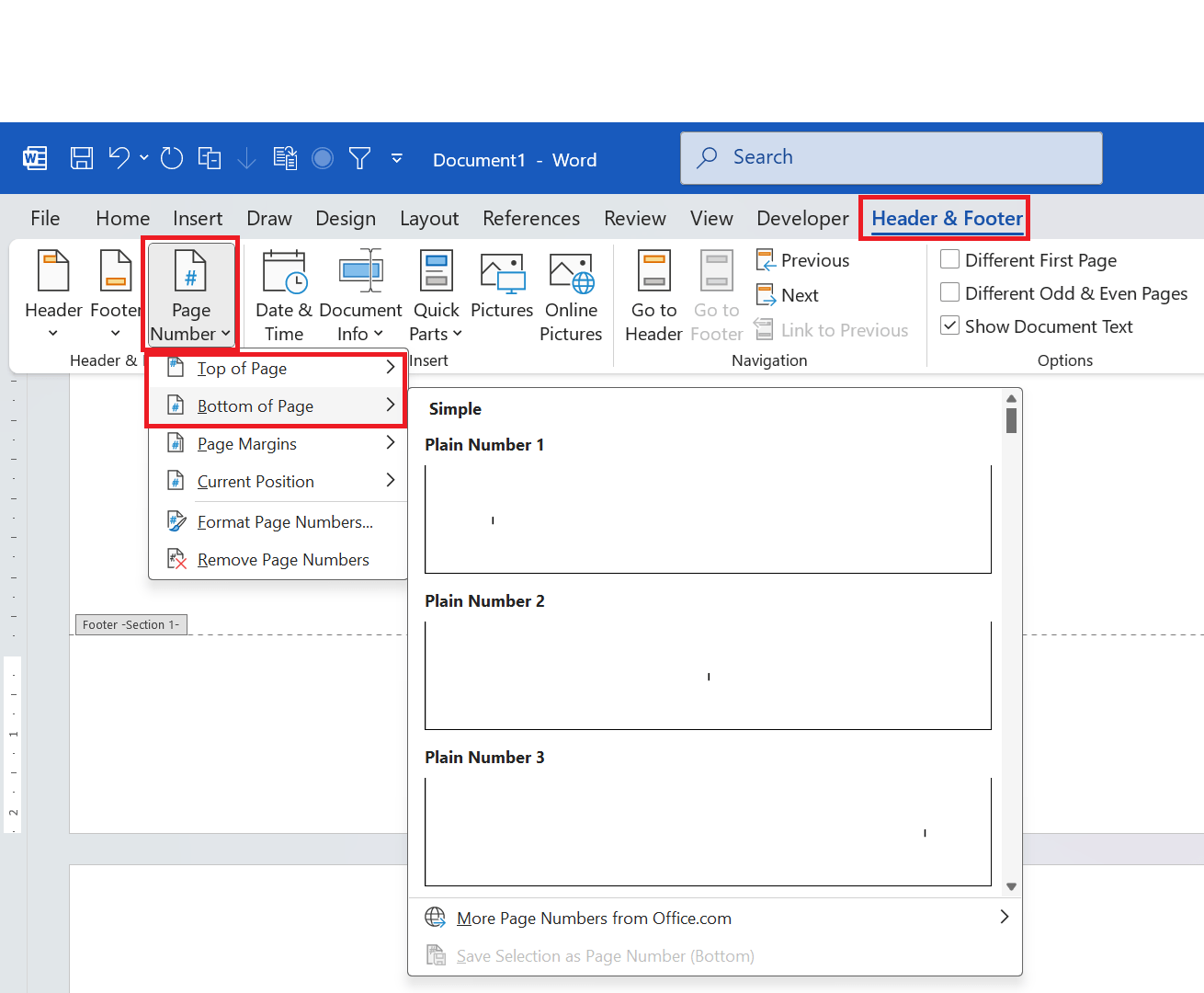
✔️ Click Page Number → Format Page Numbers → Choose Roman numerals (i, ii, iii). 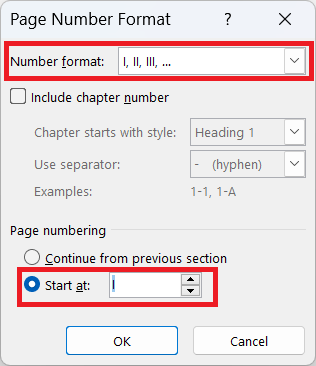
✔️ Follow the steps above for page 3 onwards with normal numbers.
Final Thoughts
Starting page numbering on the third physical page requires a section boundary and independent header/footer content. Review the first four pages after editing, then check the exported PDF to confirm that page labels and visible numbers match your document requirements.
Final check: Verify that pages 1 and 2 have the intended header/footer layout and page 3 shows the chosen number. Export to PDF and inspect the first four pages before distributing the document.
Checklist for reports, theses, and exported PDFs
- Check the footer of pages 1, 2, 3 and 4 separately, including odd/even and first-page variants.
- Confirm that page 3 is the first page of Section 2; if the break creates a blank page, inspect nearby manual breaks before deleting anything.
- Use Start at 1 if the third physical page must be labeled 1; use Start at 3 if it must display 3.
- If the document has a table of contents or cross-references, update its fields and verify the page references after changing section breaks.
- Check visible numbers in the exported PDF. PDF viewer page indexes may differ from the numbers printed on the document pages.
Scope: These steps describe desktop Microsoft Word. Exact ribbon names may differ by release, and Word for the web may not provide the same section-specific header and footer controls. For related instructions, see start page numbers on page 2 and update a Word table of contents.
Related Posts
Why is page 3 still showing the wrong number?
Double-click the page-3 footer and confirm that it belongs to Section 2. Turn off Link to Previous in the footer or header that actually contains the page-number field. Choose Page Number > Format Page Numbers > Start at 1 for page 3 to display 1, or Start at 3 if you want it to display 3 regardless of earlier section numbering. Different First Page and Different Odd & Even Pages create separate variants that may also need checking. If an extra blank page appears, inspect manual page breaks next to the Next Page section break. Word for the web may not expose all section-header controls; use desktop Word for this workflow.
Alternative: add page numbers only after splitting the sections
If the document has no page numbers yet, insert a Next Page section break immediately before the chapter intended for page 3. Open the page-3 footer and turn off Link to Previous for that footer. Only then insert the page-number field in Section 2 and choose Page Number > Format Page Numbers > Start at 1. This avoids inserting and later deleting a number in Section 1. If you use a header instead, unlink that header, not the footer.
Worked example: title page, abstract, Chapter 1
For a four-page report with a one-page cover, a one-page abstract, and a chapter beginning on physical page 3, put the break before the chapter heading. After unlinking the correct footer and restarting numbering, the printed sequence should be no number, no number, 1, 2. If the abstract flows onto an additional page, the section boundary moves too: a section break alone cannot guarantee the chapter begins on physical page 3.
Common mistakes to avoid
- Do not type a static number 1 in the footer: insert an automatic page-number field so subsequent pages increment.
- Do not delete an existing section break without checking its effects on margins, orientation and header/footer formatting.
- If Different First Page is enabled for Section 2, inspect its separate first-page footer: a number in the primary footer may not appear on page 3.
- After adding or deleting front matter, recheck where the section begins, update the table of contents and inspect the exported PDF.
Related: continue page numbering after a section break.

C P Gupta is a YouTuber and Blogger. He is expert in Microsoft Word, Excel and PowerPoint. His YouTube channel @pickupbrain is very popular and has crossed 9.9 Million Views.