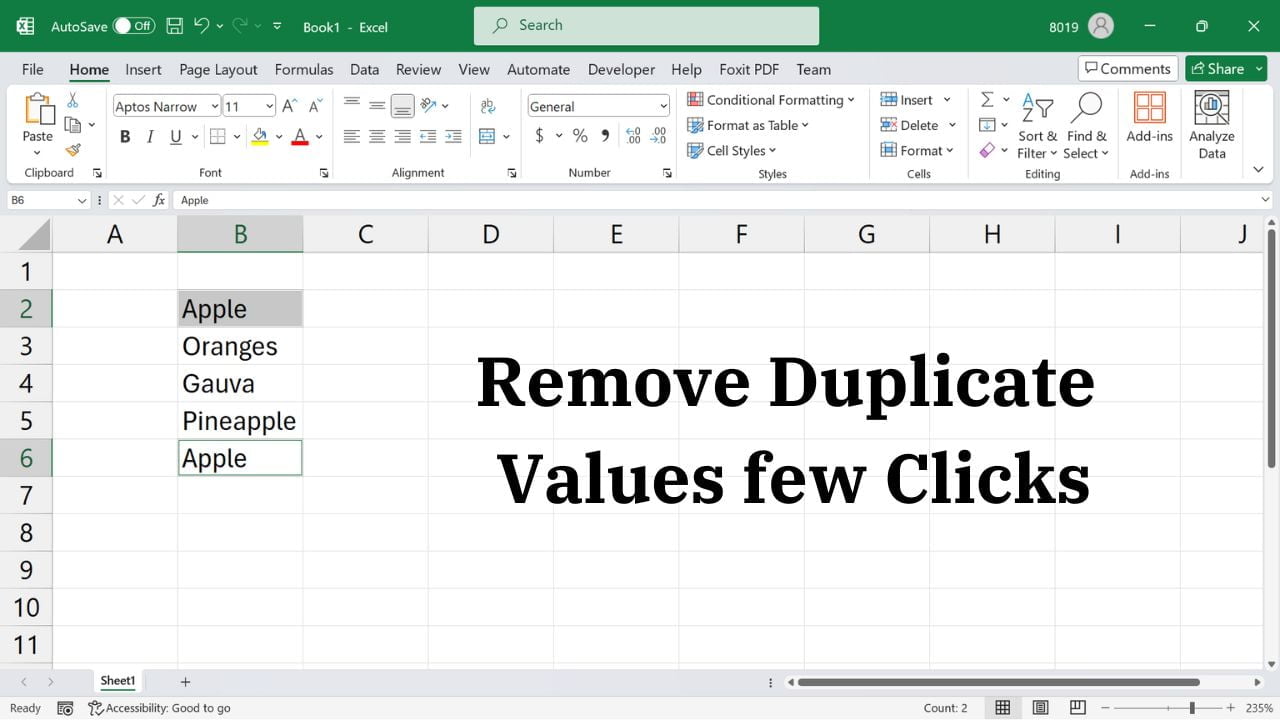
Quick answer: Select your data in Excel, choose Data → Remove Duplicates, select the columns that define a duplicate, and click OK. Excel keeps the first matching record and removes later duplicates. Make a copy of your data first, because this operation deletes rows from the selected range. Remove Duplicate Values and Rows in Excel Excel’s built-in Remove Duplicates command can clean repeated records quickly. Before starting, decide whether duplicates… Read More »How to Remove Duplicate Rows in Excel Safely (Without Losing Data)