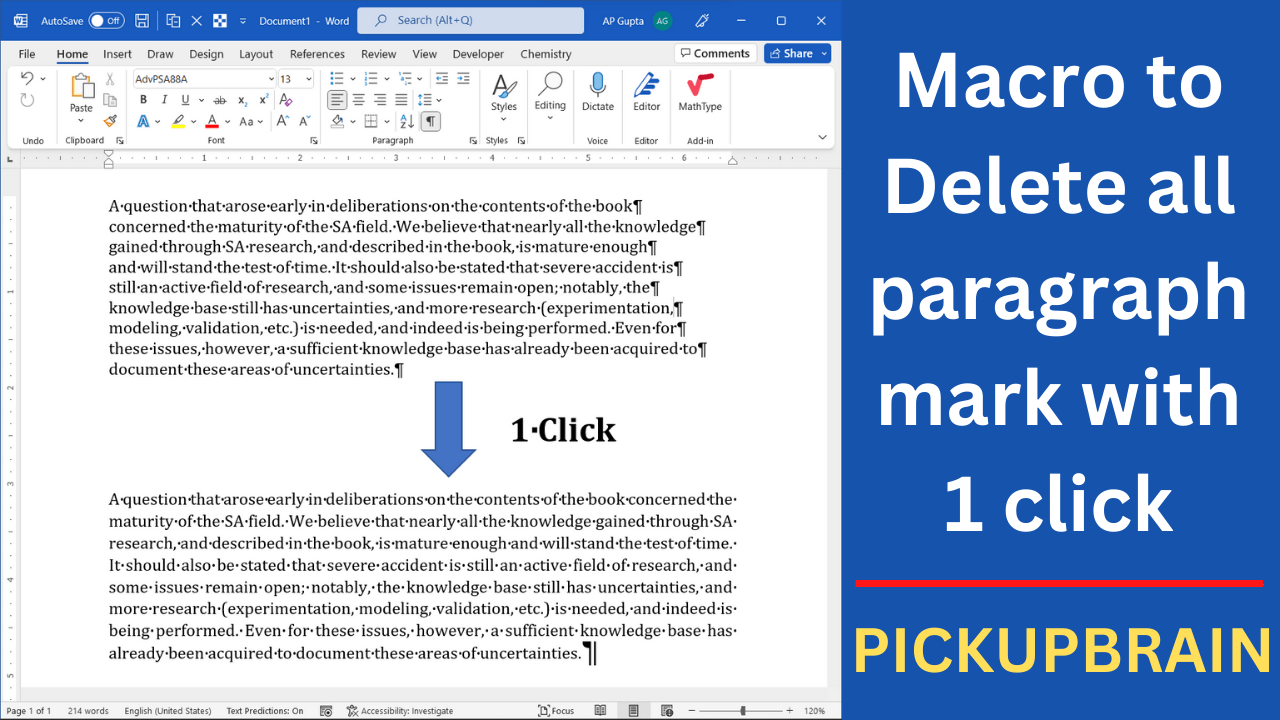
Text copied from PDFs often contains unwanted manual line breaks (Shift+Enter). This Word VBA macro replaces only manual line breaks in selected text with spaces, preserving paragraph boundaries. Make a backup and select a short passage first; do not remove genuine paragraph marks just to join lines.
Sub ReplaceManualLineBreaksInSelection()
    Dim target As Word.Range
    If Selection.Range.Start = Selection.Range.End Then
        MsgBox "Select the text to clean up first.", vbExclamation
        Exit Sub
    End If
    Set target = Selection.Range.Duplicate
    With target.Find
        .ClearFormatting
        .Replacement.ClearFormatting
        .Text = "^l"
        .Replacement.Text = " "
        .Forward = True
        .Wrap = wdFindStop
        .Format = False
        .MatchWildcards = False
        .Execute Replace:=wdReplaceAll
    End With
End Sub
Before running the macro
Turn on formatting marks (Home > ¶) to distinguish manual line breaks (↵) from paragraph marks (¶). Use Find and Replace with ^l for manual line breaks when a macro is unnecessary. Do not run a blanket replacement on tables, numbered lists, citations or multi-paragraph material you need to preserve.
What the macro does
The revised macro uses Word’s Find and Replace within a duplicate of the current selection: ^l matches manual line breaks (Shift+Enter) while paragraph marks (Enter) are left intact. Unlike assigning to Range.Text, Find and Replace avoids replacing the entire selected range as one plain-text string, which could remove character-level formatting. It does not infer whether a manual break was intentional; review the result.
How to install and run the macro
- In desktop Word, save a backup and select the affected passage. Avoid selecting tables, lists or text where line breaks carry meaning.
- Press Alt+F11 on Windows (or open the Visual Basic editor from Developer), choose Insert > Module, and paste the code above into the module.
- Return to Word and run ReplaceManualLineBreaksInSelection from View > Macros > View Macros. A selection is required; the macro exits if nothing is selected.
- Inspect spacing, paragraphs and character formatting. Save a document containing VBA as .docm if you need to retain the macro; Word for the web cannot run VBA.
Example: manual break versus paragraph break
Suppose the selection contains First line↵second line¶Next paragraph, where ↵ is a manual line break and ¶ is a paragraph mark. After running the macro, it becomes First line second line¶Next paragraph. The separate paragraph remains separate. If you need to remove paragraph marks too, do so selectively with a separate reviewed operation, not this macro.
Test the macro safely before using it on a real document
Create a disposable Word document with three separate paragraphs. In the first, type Alpha, press Shift+Enter, then type beta. In the second, type Gamma and leave its paragraph break intact. In the third, type Delta, press Shift+Enter, then type epsilon. Select only the first paragraph and run the macro. The expected result is Alpha beta in the first paragraph; the other paragraphs must remain unchanged. Turn on Show/Hide to confirm that the first ↵ disappeared while the ¶ paragraph boundary remains. Repeat on a copy containing bold text to check formatting.
Limitations and security notes
This macro is designed for ordinary selected document text, not a universal PDF-reconstruction tool. It cannot detect semantic paragraph boundaries, repair PDF hyphenation, or distinguish intentional Shift+Enter breaks in addresses, poetry and captions. The selected range can include hidden or structured content, so review the selection carefully. Macro security prompts are expected in some installations; follow your organization’s policy rather than enabling all macros. For a one-off correction, the built-in Find and Replace approach is easier to audit.
Frequently asked questions
Can I do this without VBA? Yes. Select the affected text, press Ctrl+H in desktop Word, enter ^l in Find what and a space in Replace with, then use Replace All within the intended selection after checking the dialog scope.
Does this preserve bold and italic text? Find and Replace is preferable to replacing the entire range with plain text, but always check mixed formatting and unusual content after running a macro.
Safer workflow and troubleshooting
Save a backup, select one affected paragraph or passage, run the macro and inspect the result before processing more. If the output joins lines that should remain separate, undo immediately; the macro deliberately replaces every manual line break in the selection. For a full walkthrough, see remove unwanted line breaks in Word.

C P Gupta is a YouTuber and Blogger. He is expert in Microsoft Word, Excel and PowerPoint. His YouTube channel @pickupbrain is very popular and has crossed 9.9 Million Views.