Quick answer: To stop Word from automatically capitalizing sentences or table cells, open File → Options → Proofing → AutoCorrect Options in Word for Windows, then use the AutoCorrect tab to clear the relevant capitalization options. On Mac, open Word → Settings/Preferences → AutoCorrect and review the corresponding options.
- Capitalize first letter of sentences
- Capitalize first letter of table cells
- Capitalize names of day
Although this is a useful feature of Word, sometime you may want to disable some of them.
Steps to turn off auto capitalization in Word
- Open Autocorrect Options
- Windows
- Navigate Files → Options to open Word Options
- Navigate to Proofing and click AutoCorrect Options
- Navigate to the AutoCorrect tab
- Mac
- Navigate to Word → Preferences and select Autocorrect
- Windows
- Step 2: Uncheck the box against option that you don’t want
- Capitalize first letter of sentences
- Capitalize first letter of table cells
- Capitalize names of day
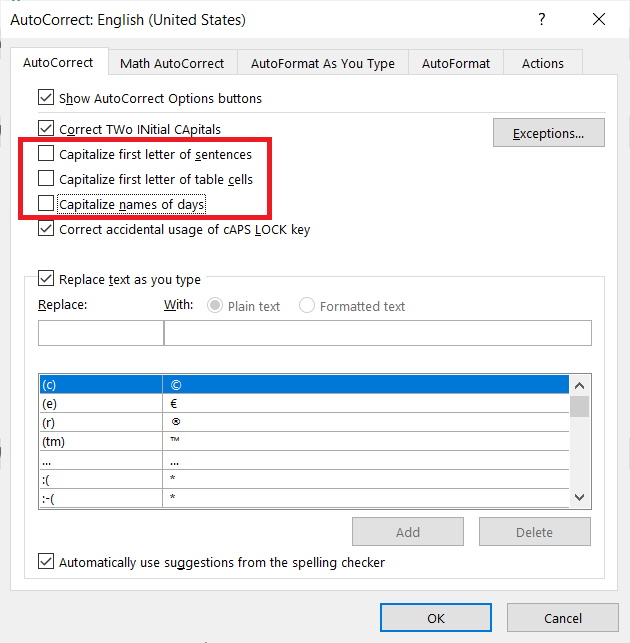
Turn Off Specific Capitalization Rules
You can disable automatic capitalization of the first letter of sentences, table cells or days of the week individually. Leave other AutoCorrect features enabled if they are helpful; there is no need to disable all automatic corrections.
Important: Use AutoCorrect, Not Math AutoCorrect
Capitalization options are on the standard AutoCorrect tab. Math AutoCorrect controls shortcuts for mathematical symbols and is not the correct place to disable capitalization. The menu labels can vary by Word version.
What If Capitalization Continues?
Check whether the text is being transformed by a Word style’s All Caps or Small Caps font setting, whether Caps Lock is on, or whether an add-in is changing text. AutoCorrect changes normally apply as you type and do not retroactively alter existing text.

C P Gupta is a YouTuber and Blogger. He is expert in Microsoft Word, Excel and PowerPoint. His YouTube channel @pickupbrain is very popular and has crossed 9.9 Million Views.