Need Greek letters such as α, β, Δ or Ω in a Word equation? Word’s equation editor accepts many Math AutoCorrect commands, including \alpha, \beta, \Delta and \Omega. Type a command in an equation and press Space to convert it. The table below shows all 24 genuine Greek uppercase and lowercase Unicode characters. Uppercase codes use Word for Windows Alt+X; lowercase equation commands are listed where commonly supported. Note that… Read More »Greek Letters in Word: All 24 Equation Shortcuts and Symbols
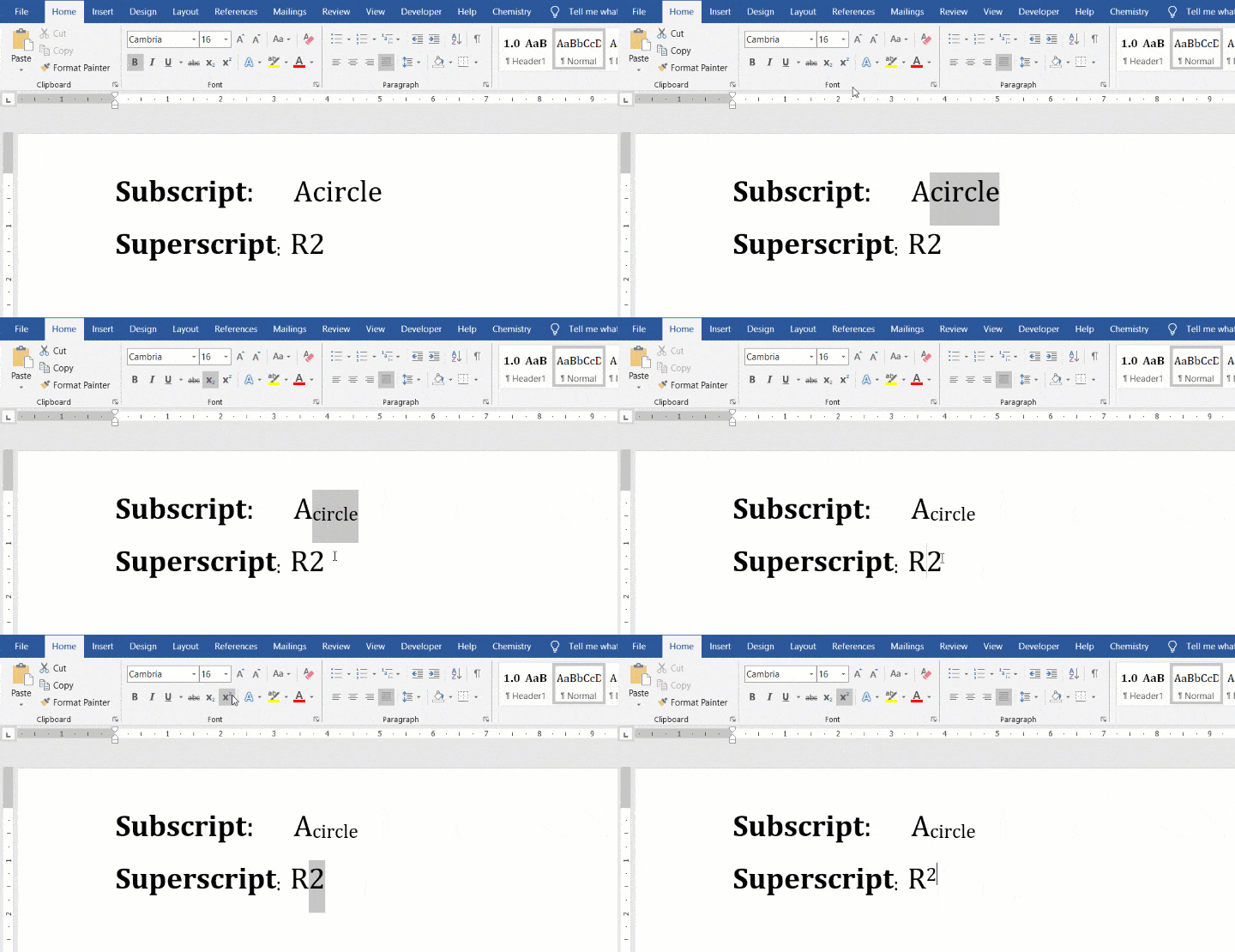
Learn to type subscript and superscript in Word on Windows and Mac using the Home tab, keyboard shortcuts, and equation editor, with examples and fixes.
Subscript and Superscript in Word: Shortcuts, Examples and Equations
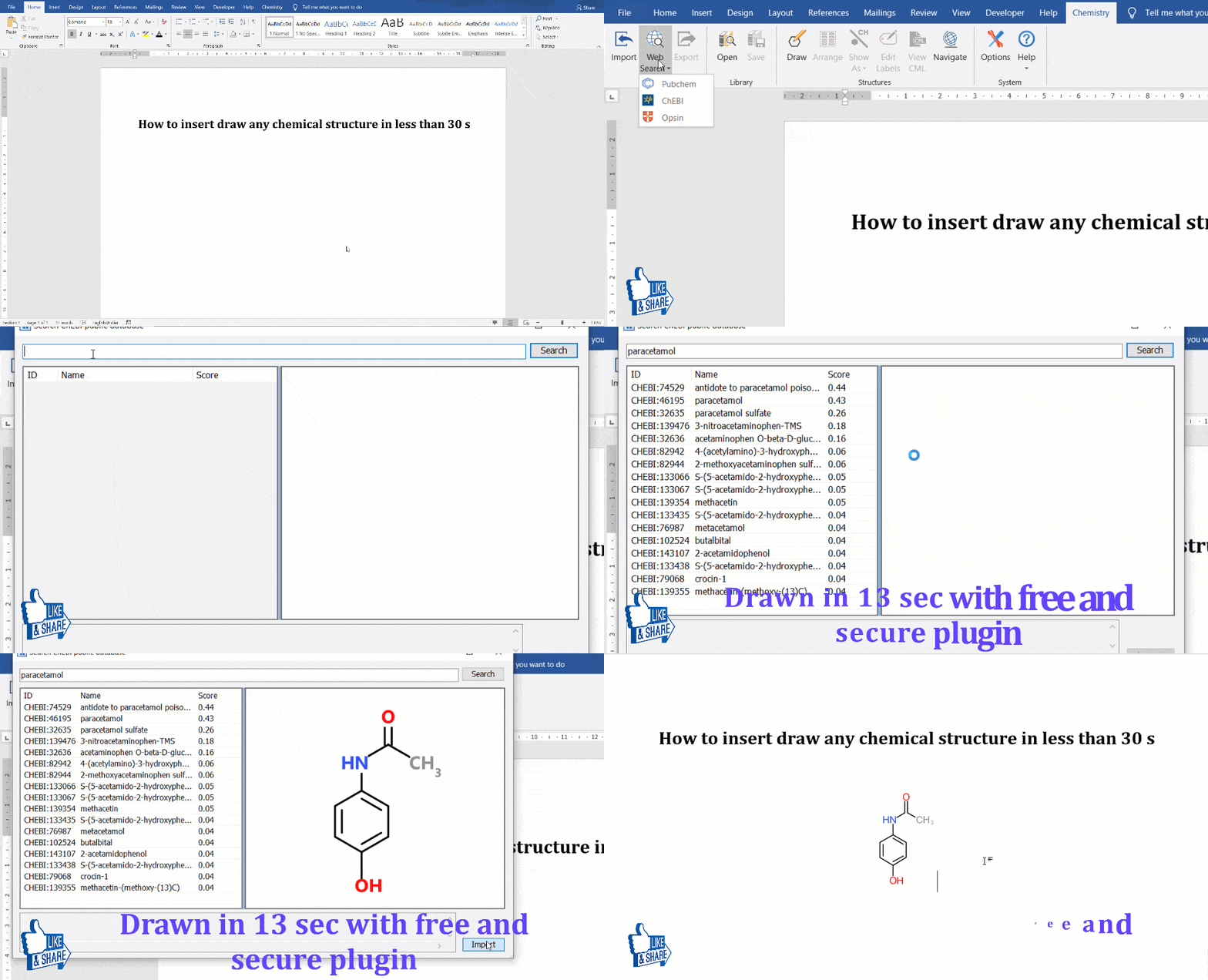
Learn how to draw and import molecular structures in desktop Word using the maintained Chem4Word add-in, with updated download guidance, compatibility and troubleshooting.
Draw Chemical Structures in Word with Chem4Word: Setup and Tips
A reference manager helps students and researchers collect sources, organize research papers, insert citations in Microsoft Word, and generate bibliographies in styles such as APA, MLA, Chicago or IEEE. Rather than typing and renumbering every reference manually, tools such as Mendeley Cite and Zotero can maintain citation links within a Word document. This updated guide explains the current workflows and the important difference between older Mendeley Desktop plugins and modern Word add-ins.
Why use a reference manager?
- Collect reliable source details: save titles, authors, journals, DOIs and publication dates from trusted records or imported files.
- Organize the literature: use tags, collections and searchable notes to keep related papers together.
- Insert citations in Word: choose a source from your library instead of manually formatting a reference.
- Generate a bibliography: automatically compile cited references in a selected style, then review the output.
- Update citations: change formatting or correct source metadata without rebuilding every reference, provided the citations remain linked to the manager.
A good citation manager reduces repetitive formatting, but every imported reference still needs verification against the original source.
Mendeley, Zotero or Word: Which tool should you choose?
| Option | Typical workflow in Word | Important consideration |
|---|---|---|
| Mendeley Reference Manager + Mendeley Cite | Store and organize sources in Mendeley; use the standalone Mendeley Cite Word add-in to insert citations and bibliographies | Needs an appropriate Mendeley account and cloud library access; legacy Desktop citations may require migration |
| Zotero + Word plugin | Manage sources in Zotero and use the Zotero Word tab to add or edit citations and bibliographies | Free/open-source software; confirm current plugin compatibility and keep a backup before unlinking citations |
| Word built-in citations | Use Word’s References tab to manage sources and insert citations | Useful for simpler projects, but research-library organization and interoperability differ from dedicated tools |
Mendeley and Zotero both provide reference-management functionality, but product plans, storage allowances, platform support and collaboration options can change. Check their published terms rather than assuming that all advanced features or cloud storage are unlimited. For many Word-focused projects, either Mendeley Cite or Zotero is a practical starting point.
Method 1: Use Mendeley Cite to insert citations in Word
Mendeley offers Mendeley Reference Manager to manage your research library and Mendeley Cite, a separate Word add-in for citations. You do not need to keep the old Mendeley Desktop application running to insert citations through Mendeley Cite; it can use a synced cloud library. See the official Mendeley Reference Manager description.
- Set up your Mendeley account and build a library of articles with accurate metadata. Import supported PDFs or reference files as appropriate; check the extracted information for errors.
- In a supported Word version, obtain and open the Mendeley Cite add-in through Microsoft’s add-in controls. Organizational policies may restrict installation.
- Put the cursor where the citation should appear. Use Mendeley Cite’s References interface to search and select one or more sources, then choose Insert Citation (or the corresponding Insert control).
- Choose the required citation style in the add-in settings.
- Position the cursor where your bibliography should begin. Open Mendeley Cite’s menu and choose Insert Bibliography.
- Review the result, ensure the bibliography updates when sources change, and verify that the formatting complies with your university or journal rules.
For the current steps, consult Mendeley’s citation instructions and bibliography instructions. Do not assume that the old Ctrl + M shortcut from the discontinued-style Mendeley Desktop Word plugin operates the same way in Mendeley Cite.
Important: Mendeley Desktop and Mendeley Cite are not interchangeable
The previous version of this article recommended installing Mendeley Desktop and using its older Word integration as the default. Mendeley Desktop is no longer being developed, and new projects should generally evaluate Mendeley Reference Manager with Mendeley Cite. Elsevier states that old Desktop-plugin citations are not automatically compatible with Mendeley Cite; upgrading an existing Word document requires a supported migration process.
Before migrating an existing thesis or dissertation: save a separate backup copy of the Word document, confirm your Mendeley library is synchronized, and follow Mendeley’s official citation migration instructions. Do not delete old fields or flatten citations prematurely—doing so can remove the ability to update them.
Original Mendeley demonstration video
This original PickupBrain demonstration remains available for historical context. It shows an older Mendeley interface and should not be treated as a current Mendeley Cite installation walkthrough.
Method 2: Use Zotero with Microsoft Word
Zotero is a free/open-source reference manager with a Word integration. In a supported desktop Word installation, its plugin adds a Zotero tab containing actions such as Add/Edit Citation, Add/Edit Bibliography, Document Preferences and Refresh.
- Install Zotero from its official website, following the platform and Word compatibility instructions.
- Collect your sources in Zotero and verify their metadata.
- Place the cursor in Word, open the Zotero tab and choose Add/Edit Citation. Search for the correct source and insert it.
- Choose your document’s required citation style in Document Preferences.
- At the bibliography location, choose Add/Edit Bibliography. Use Refresh after correcting item metadata in your Zotero library.
See the official Zotero Word plugin documentation. Do not choose Unlink Citations while you still need editable references: Zotero warns that unlinking removes the fields needed for automatic citation updates.
Method 3: Use Word’s built-in citation manager
For a smaller assignment, Microsoft Word’s References ribbon can insert citations, manage source records and generate a bibliography without an external library application. It can be sufficient when the citation style and feature set meet your requirements. For a long research project with hundreds of papers, a dedicated manager may provide more convenient PDF organization, metadata importing and reference reuse.
How to avoid incorrect citations and bibliography errors
- Check imported metadata: PDF extraction and web imports can omit authors, misread publication years or assign a wrong title. Confirm details from the publisher or DOI record.
- Use the required style: verify edition, punctuation, author formatting, capitalisation, journal abbreviations and the handling of online sources.
- Keep the citation fields linked: manual changes in a generated bibliography may be overwritten on refresh. Edit the source metadata or use the plugin’s supported citation editor.
- Back up before migrating: do not mix citation managers or convert Word citation fields without a tested workflow.
- Keep a copy for submission: after the final citation check, export or create an approved submission copy as required, while preserving an editable source file.
Choose a citation manager: practical decision checklist
- Existing thesis with live citations: keep using its original citation manager until you have backed up and tested a supported migration. Do not mix Zotero and Mendeley fields in one production manuscript without a deliberate plan.
- Offline or restricted environments: check whether your chosen add-in requires sign-in, internet access or organizational approval. A synced cloud library and a locally installed reference manager have different availability requirements.
- Collaboration: agree on one citation tool, shared library, citation style and file-sharing workflow before multiple authors edit the same Word document.
- Submission: preserve an editable source document and separately generate the final PDF or requested submission copy; do not unlink citations just to produce a PDF.
Five-minute citation quality-control test
- Create a test Word document and insert two verified scholarly sources with the chosen manager.
- Insert a bibliography, then correct a deliberately incorrect publication year in the reference manager and refresh the document.
- Delete one test citation and refresh; verify that the bibliography reflects only the sources still cited, subject to the chosen manager’s behavior.
- Save, close and reopen the Word file. Confirm that citations remain editable and the bibliography still refreshes.
- Export to PDF and inspect author names, in-text numbering, bibliography layout, special characters and hyperlinks.
Accessibility: write meaningful link text in your thesis, apply Word Heading styles, and run the Accessibility Checker before submission. A correctly formatted bibliography does not by itself make the entire document accessible.
Frequently asked questions
Is Mendeley Reference Manager free? It has a no-cost offering, but plans and storage limits may vary. Check the current pricing and institution access. Can Zotero format references automatically? Yes, its Word plugin manages citations and bibliographies in supported styles. Do references update if I delete a citation? Usually when the document remains linked and the plugin refreshes, but always check the final bibliography.
Why does Mendeley Cite not see citations from my old document? Old Mendeley Desktop Word citations use a different integration and may need supported migration. Why does Mendeley Cite fail to create a bibliography? Update your Word installation and review current vendor support guidance, since Office changes can affect add-ins.
Original embedded promotion and historical research-writing resources
The original article also included a promotional embed and links to older PickupBrain videos about Word styles, tables, equations and citations. They are preserved below for continuity, but are not endorsements of current product versions or claims of guaranteed time savings. Some links may no longer work.
- Original resource 1 — historical reference from the original article; check availability and product relevance before using.
- Original resource 2 — historical reference from the original article; check availability and product relevance before using.
- Original resource 3 — historical reference from the original article; check availability and product relevance before using.
- Original resource 4 — historical reference from the original article; check availability and product relevance before using.
- Original resource 5 — historical reference from the original article; check availability and product relevance before using.
- Original resource 6 — historical reference from the original article; check availability and product relevance before using.
- Original resource 7 — historical reference from the original article; check availability and product relevance before using.
- Original resource 8 — historical reference from the original article; check availability and product relevance before using.
- Original resource 9 — historical reference from the original article; check availability and product relevance before using.
- Original resource 10 — historical reference from the original article; check availability and product relevance before using.
- Original resource 11 — historical reference from the original article; check availability and product relevance before using.
- Original resource 12 — historical reference from the original article; check availability and product relevance before using.
- Original resource 13 — historical reference from the original article; check availability and product relevance before using.
- Original resource 14 — historical reference from the original article; check availability and product relevance before using.
- Original resource 15 — historical reference from the original article; check availability and product relevance before using.
- Original resource 16 — historical reference from the original article; check availability and product relevance before using.
Read More »Best Reference Managers for Word: Mendeley Cite vs Zotero
Best Reference Managers for Word: Mendeley Cite vs Zotero
View the complete Greek alphabet with all 24 letter names, uppercase and lowercase symbols, common uses, and tips for inserting letters in Word.
Greek Alphabet: All 24 Letters, Names and Symbols (Α–Ω)
A practical literature-review workflow for theses and research papers: search strategy, critical reading, evidence matrices, synthesis, citations and Word formatting.