Use subscript to place characters slightly below a line of text (H2O) and superscript to raise them above the line (x2). Microsoft Word supports both in regular text, and it also has equation-formatting tools for more complex scientific notation. This tutorial explains the ribbon buttons, keyboard shortcuts, and the equation editor.
Subscript vs superscript: examples
- Subscript: H2O, CO2, or xi in chemistry and mathematics.
- Superscript: x2, 103, and an for powers and exponents.
- Both: xi2 uses a lower index and a raised exponent. For complex placement, Word’s equation editor is easier than individually formatted text.
Method 1: Use the Home tab (easiest)
- Type the expression normally, such as H2O or x2.
- Select only the character you want to move: 2.
- Choose Home > Font > Subscript (x₂ icon) for H2O, or Home > Font > Superscript (x² icon) for x2.
- Select the formatted character again and click the same button to turn the formatting off.
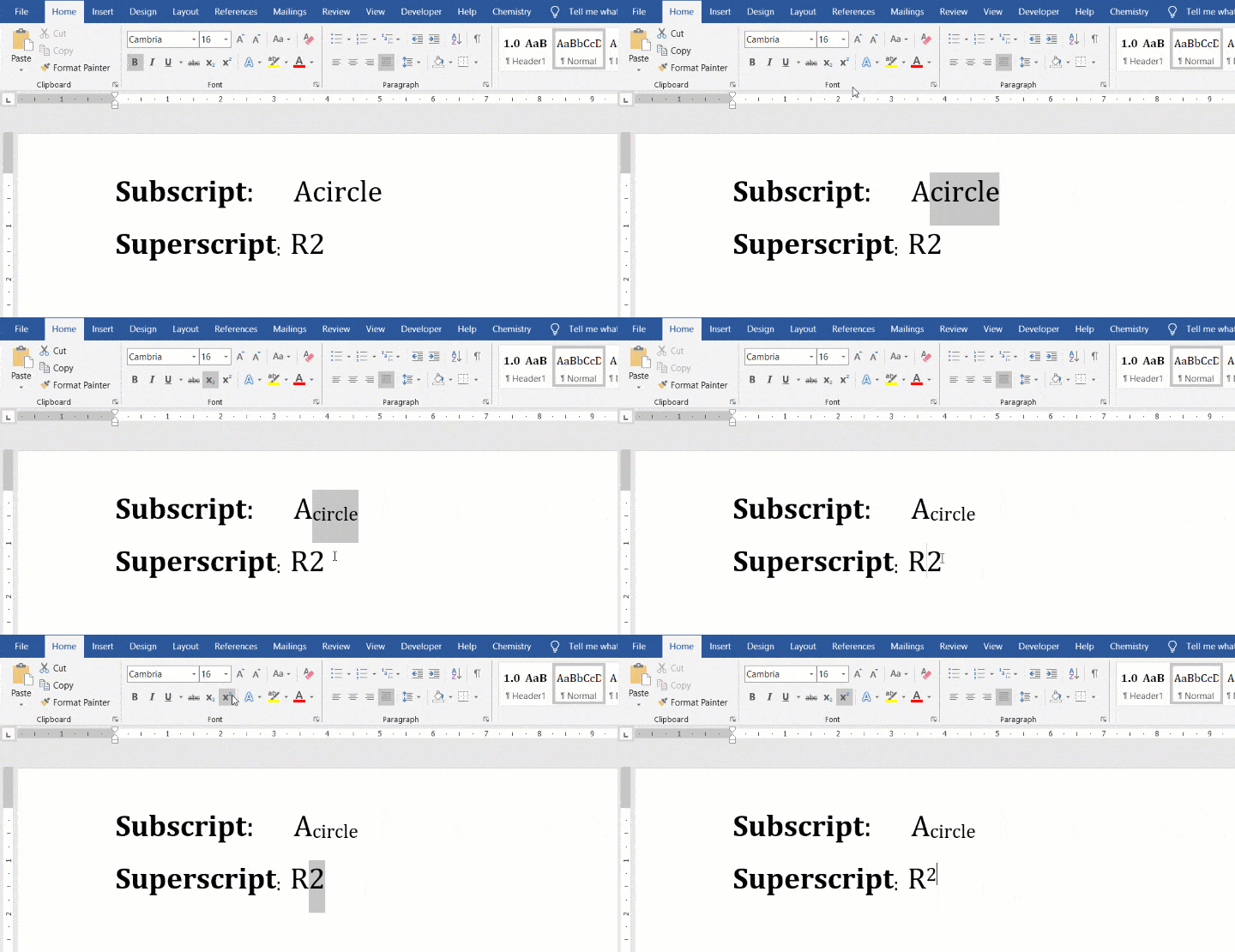
This method works well for occasional formulas in paragraphs and headings. For chemical equations, also see our chemical reaction arrow tutorial.
Method 2: Keyboard shortcuts in Word
Select the characters first, then apply the appropriate shortcut. Microsoft’s current Word guidance lists the following shortcuts. The exact key combination can vary with keyboard layout and Word version.
- Word for Windows — superscript: Ctrl + Shift + Plus (+). On a typical US keyboard, the plus sign is on the equals key.
- Word for Windows — subscript: Ctrl + Shift + Minus (-) in current Microsoft documentation. Some older Word guides also list Ctrl + =; use the Home button if the shortcut on your installation is different.
- Word for Mac — superscript: Command + Shift + Plus (+).
- Word for Mac — subscript: Command + Shift + Minus (-).
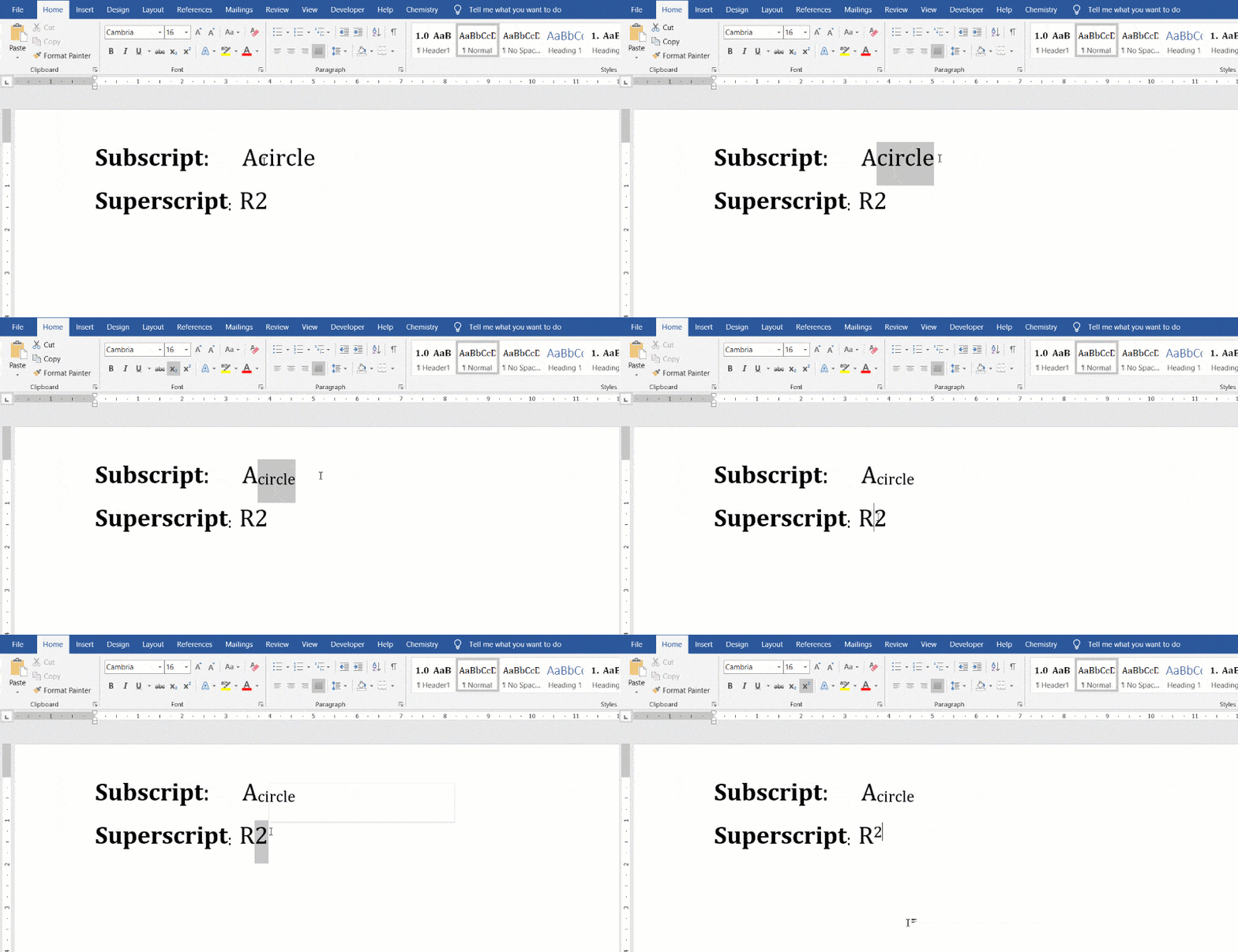
You can also turn formatting on before typing the characters, then turn it off to return to normal text. If the shortcut does nothing, check whether the operating system or another application uses it.
Method 3: Subscripts and superscripts in Word equations
For research papers and formulas with indices, use Word’s equation editor rather than applying ordinary font formatting one character at a time. In Word for Windows, press Alt + = to start an equation; on supported Mac versions, use Control + =, or choose Insert > Equation.
- Insert an equation and make sure the equation input mode is UnicodeMath if you are using the syntax shown below. Word also offers LaTeX input in supported versions, but its input rules are different.
- Type x_2 for a subscript, or x^2 for a superscript. Use parentheses to group multi-character scripts, such as x_(n+1).
- Press Space where needed to convert the linear expression to the built-up equation. Some structures require another space or selecting the Professional display option.
- For a combined index and exponent, try x_i^2. If the equation remains linear, check the selected equation input format and conversion settings.
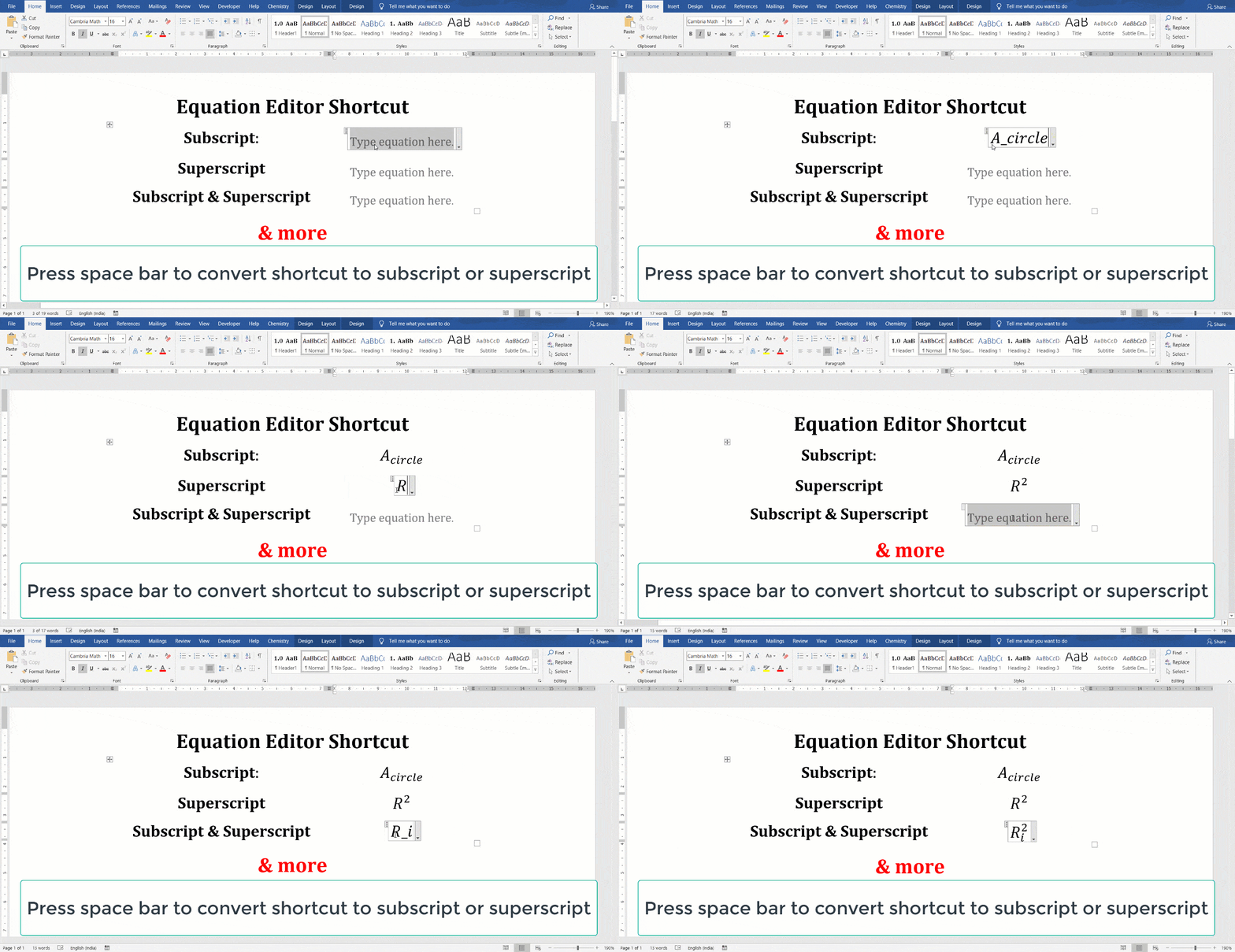
Unlike normal subscript/superscript formatting in a paragraph, this method builds editable mathematical structures. Microsoft explains UnicodeMath and LaTeX equation inputs. Read our Word equation-editor shortcut guide for more symbols and expressions.
Quick comparison: which method should you use?
- Occasional H2O or x2 in body text: the Home tab buttons are simple and predictable.
- Repeated inline formatting: keyboard shortcuts can be fastest once you learn your version’s keys.
- Multi-part mathematics: the equation editor handles indices, fractions, summations, and complex placement more reliably.
Accessibility and document consistency
Superscript and subscript are visual formatting, so a screen reader may not announce them consistently in ordinary paragraphs. When the distinction matters, such as H2O versus H2O or m2 versus m2, give enough surrounding context to make the meaning clear. For complex expressions, use an editable Word equation instead of an image of the formula; if you must use an image, provide a meaningful text alternative.
Use a consistent approach throughout a document: format chemical indices and units deliberately, avoid inserting extra spaces merely to imitate subscripts, and check the exported PDF before sharing. For scientific notation, distinguish a true exponent such as 103 from a footnote marker; Word’s footnote tools are better suited to references than manually superscripted numbers.
Troubleshooting
The shortcut does not work. First check whether you are using Word for Windows, Mac, or the browser, and whether your keyboard layout matches the shortcut. Use Home > Font instead if necessary.
Word keeps typing in subscript or superscript. Toggle the formatting off before typing the next normal character. To clear manually applied character formatting from selected text in Word for Windows, use Ctrl + Spacebar, but be aware that it also clears bold, italics, and other direct character formatting.
Underscores and carets stay visible in an equation. Make sure you are typing inside an equation and using the intended UnicodeMath input mode; choose Professional conversion when needed.
How do I add a left-side subscript? An equation may need a left-script structure rather than regular text formatting. In UnicodeMath, the supported left-script syntax includes expressions such as _a^b x with appropriate conversion; the equation editor’s Script templates are another way to insert it.
Worked examples: chemical charges, isotopes and units
Water: H₂O has a subscript 2 because each molecule contains two hydrogen atoms. Sulfate: SO₄²⁻ combines the subscript 4 with a superscript charge of 2−; the charge belongs to the entire ion. Area: 5 m² uses a superscript 2, whereas the SI unit symbol m remains upright. For an isotope such as ¹⁴C, the mass number belongs at the upper left of the chemical symbol, so an equation with a prescript structure is preferable to adding ordinary superscript after C.
For a reaction such as 2H₂ + O₂ → 2H₂O, check atom counts on both sides. In equations with charges or grouped indices, use Word’s equation templates if plain text formatting makes the intended grouping ambiguous.
Five-point formatting and accessibility test
- Create H₂O and x² using Home-tab buttons, then repeat them using an equation object. Check which representation remains editable and searchable.
- Verify that formatting ends before the next normal character, and that copying the expression does not silently change its meaning.
- Use Review > Check Accessibility in supported desktop Word versions and provide explanatory text for scientific expressions when needed.
- Export a PDF and visually inspect charges, subscripts and equation placement at high zoom; compare against the original Word file.
- For complex notation, avoid screenshots of equations unless they have suitable text alternatives; prefer editable equation objects.
Summary
Use the Home buttons for normal document text, keyboard shortcuts for quick edits, and Insert > Equation when you need true math structures. This makes chemical formulas and scientific notation clearer, easier to maintain, and more consistent.
Related Posts

C P Gupta is a YouTuber and Blogger. He is expert in Microsoft Word, Excel and PowerPoint. His YouTube channel @pickupbrain is very popular and has crossed 9.9 Million Views.
In Equation Editor, characters typed after using subscript continue as subscript.
How to return to normal font?