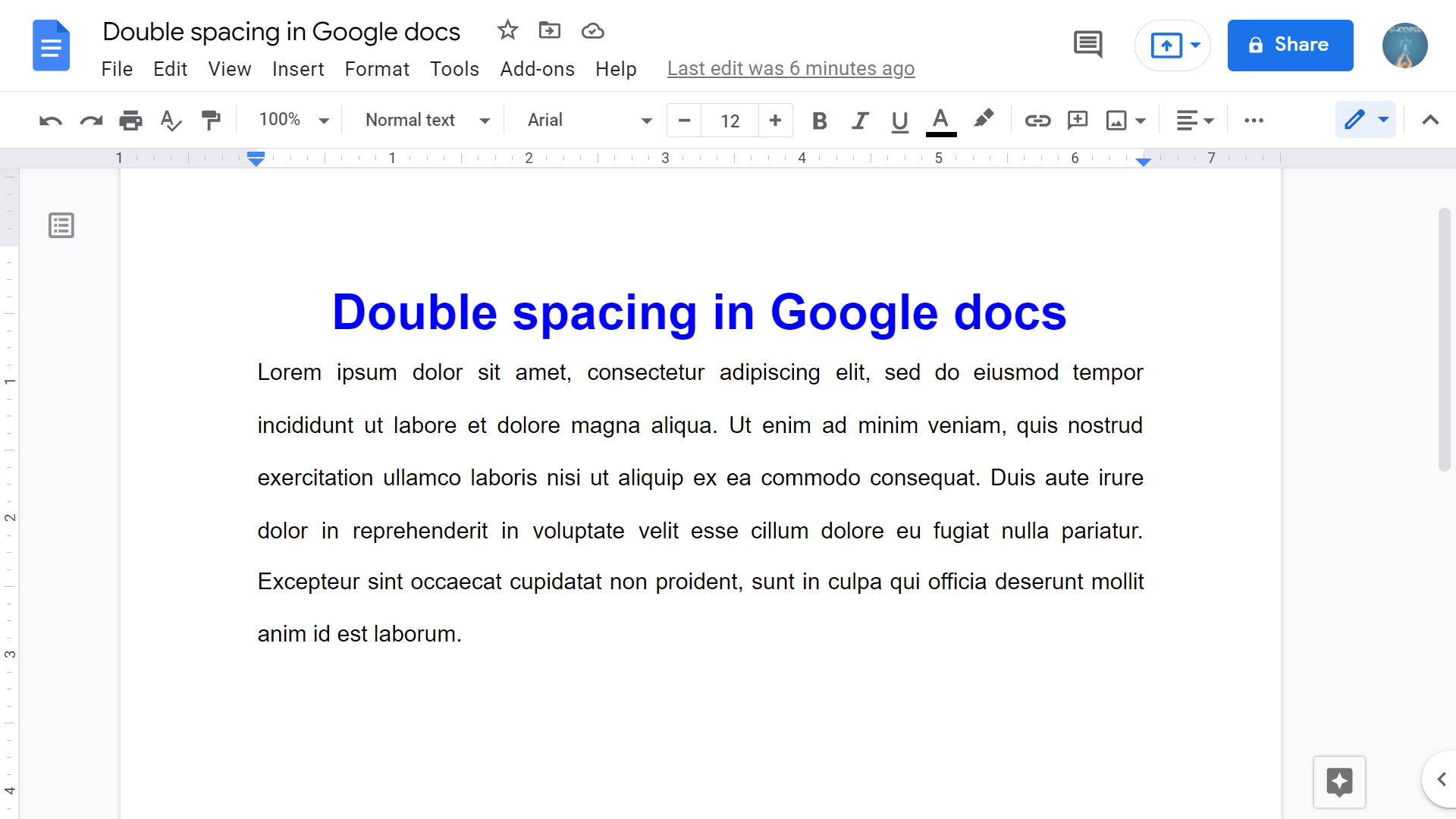
Quick answer: To double-space text in Google Docs, select the paragraphs and choose Format → Line & paragraph spacing → Double. You can also use the line-spacing button on the toolbar. To apply double spacing to the entire document, press Ctrl+A (Windows/ChromeOS) or Command+A (Mac) first. How to double-space selected text in Google Docs Select the paragraphs you want to format. If no text is selected, changing line spacing usually… Read More »How to Double Space in Google Docs (Entire Document or Selection)
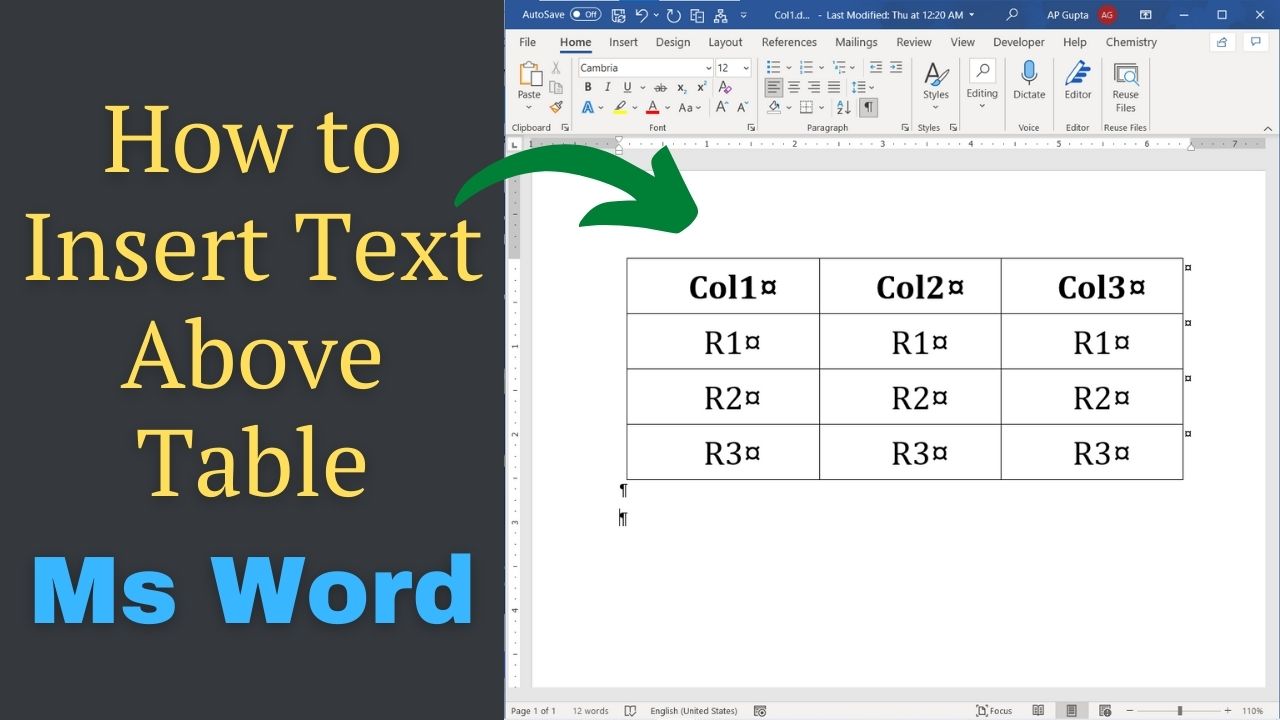
Why a table at the start of a Word document needs a paragraph above it Quick answer: If a table is the first element of a Word document, place the cursor at the beginning of the first cell and press Enter to create a paragraph above it. If this does not work, use the keyboard-based workaround below. This lets you add a heading or explanatory text without deleting the table.… Read More »How to Insert Text Above a Table in Microsoft Word
How to Insert Text Above a Table in Microsoft Word
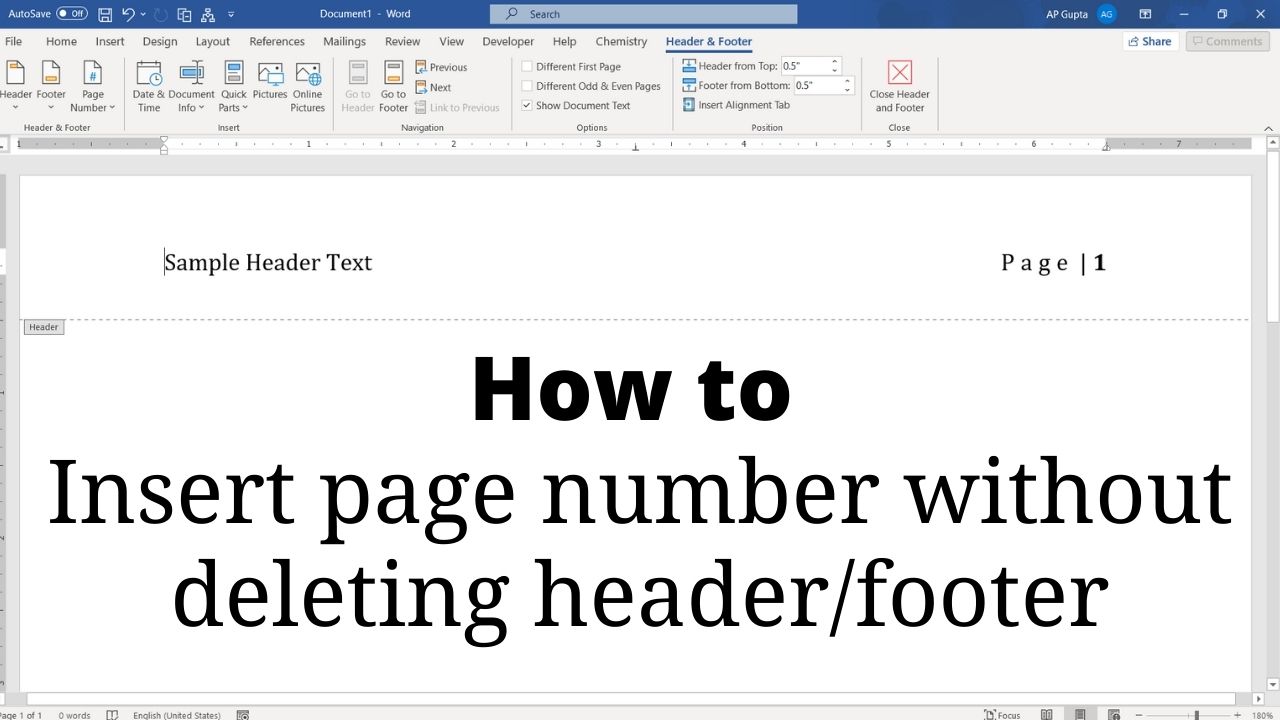
Quick answer: To add page numbers without replacing an existing Word header or footer, double-click inside the header or footer, position the cursor where the number belongs, then choose Insert → Page Number → Current Position (or insert the PAGE field). Avoid selecting a prebuilt top- or bottom-of-page design that replaces existing header/footer content. Correct way to insert page number Go to header (or footer) by double clicking the respective… Read More »How to Insert Page Numbers in Word Without Removing the Header or Footer
How to Insert Page Numbers in Word Without Removing the Header or Footer
Quick answer: The SQL DISTINCT keyword removes duplicate rows from a query result based on the selected expressions. For example, SELECT DISTINCT department FROM employees; returns each department value once. DISTINCT does not delete duplicate records from the underlying table. While working with huge data there may be a situation when you have multiple duplicate records in a table. While fetching such records, you want to fetch only unique/distinct records instead of… Read More »SQL DISTINCT in PostgreSQL: Remove Duplicate Results with Examples
SQL DISTINCT in PostgreSQL: Remove Duplicate Results with Examples
Quick answer: To change the spelling and grammar checking language in desktop Word, select the text, then choose Review → Language → Set Proofing Language and select the appropriate language. This changes proofing behavior for the selection; it does not translate the text or necessarily change the keyboard layout. Change spelling check language Select the text you want to mark as different language and do the following settings. Windows Method… Read More »How to Change Spell-Check Language in Word (Windows and Mac)
How to Change Spell-Check Language in Word (Windows and Mac)
Quick answer: To stop Word from automatically capitalizing sentences or table cells, open File → Options → Proofing → AutoCorrect Options in Word for Windows, then use the AutoCorrect tab to clear the relevant capitalization options. On Mac, open Word → Settings/Preferences → AutoCorrect and review the corresponding options. Capitalize first letter of sentences Capitalize first letter of table cells Capitalize names of days Automatic capitalization is useful for ordinary… Read More »How to Turn Off Automatic Capitalization in Microsoft Word
How to Turn Off Automatic Capitalization in Microsoft Word
Quick answer: If Microsoft Word selects an entire paragraph when you drag across its end, try disabling When selecting, automatically select entire word in File → Options → Advanced → Editing options (Windows desktop). This affects automatic word selection; paragraph-mark selection and mouse behavior can still vary. Turn off automatic whole-word selection in Word for Windows In desktop Word for Windows, select File > Options. Choose Advanced in the left… Read More »Stop Word from Selecting Too Much Text: Smart Paragraph Selection
Stop Word from Selecting Too Much Text: Smart Paragraph Selection
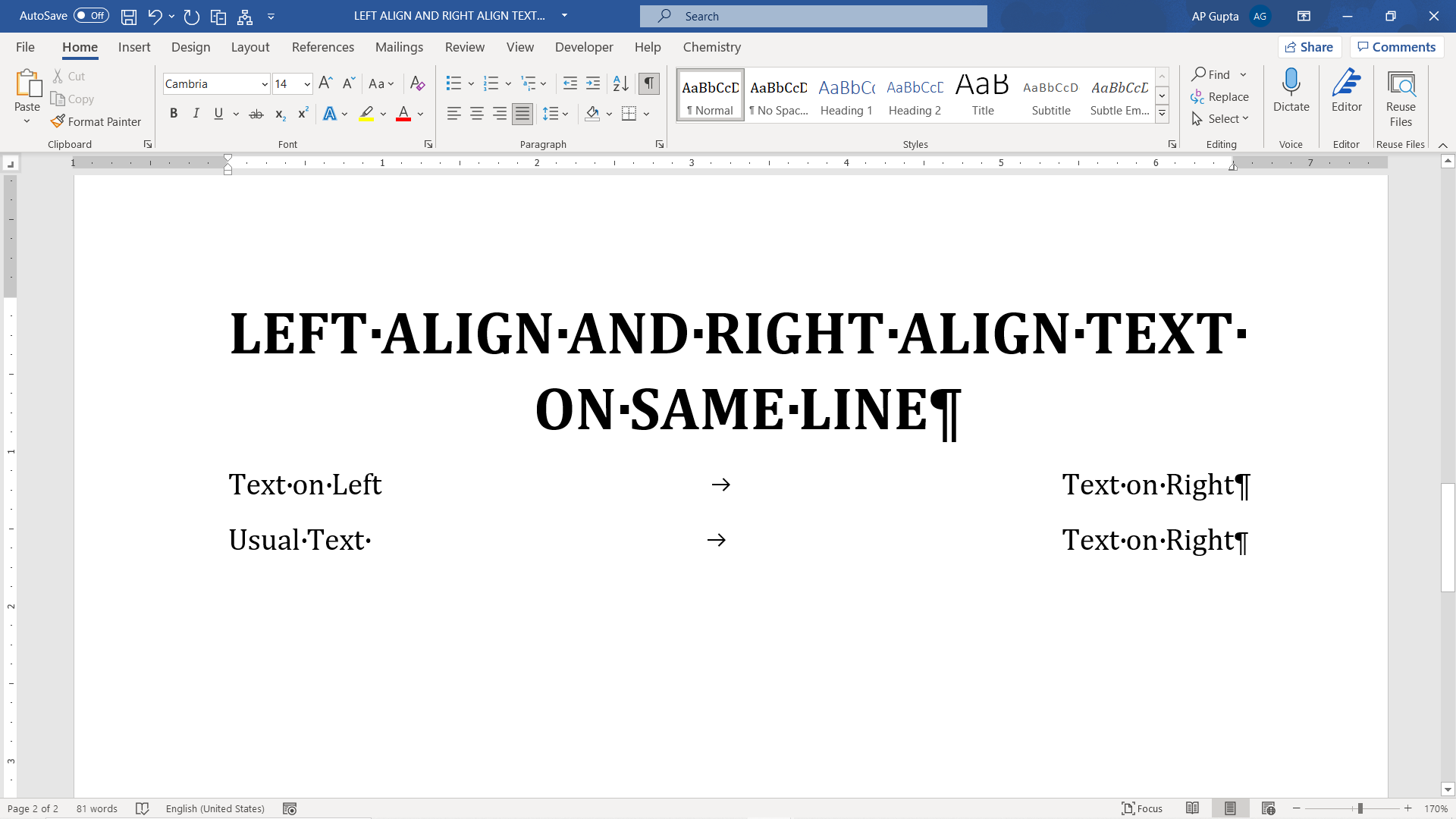
Quick answer: Use a right-aligned tab stop to put text on the left and right of the same Word paragraph. Turn on View → Ruler, choose a right tab stop, set it near the right margin, type the left text, press Tab, and type the right text. Set a right-aligned tab stop using the ruler 1: Make sure the “Ruler” is visible. Navigate to View Tab and check the box… Read More »Align Text Left and Right on the Same Line in Word
Align Text Left and Right on the Same Line in Word
Quick answer: For the second-smallest distinct value in a Python iterable, use sorted(set(numbers))[1] only after confirming that there are at least two unique values. For example, [5, 2, 4, 9, 7, 2] returns 4, not 2. Below are a simple sorting solution and a one-pass solution, with tests and complexity trade-offs. Method 1: sorted(set(numbers)) — simple and readable Convert the input to a set to remove duplicates, sort it, then… Read More »Find the Second Smallest Distinct Number in Python: Two Methods
Find the Second Smallest Distinct Number in Python: Two Methods
Quick answer: In desktop Word for Windows, type 03C0 then press Alt+X for lowercase π. Type 03A0 then Alt+X for uppercase Π. You can also use Insert → Symbol or insert π inside an equation. Type lowercase π or uppercase Π in Word Type \pi and hit spacebar to get lower case of Greek letter pi (π). Similarly, to get upper case pi (Π), type \Pi & hit space. Note:… Read More »How to Type Pi (π or Π) in Microsoft Word: Shortcuts and Symbols