Skip to content
set symbol in Word

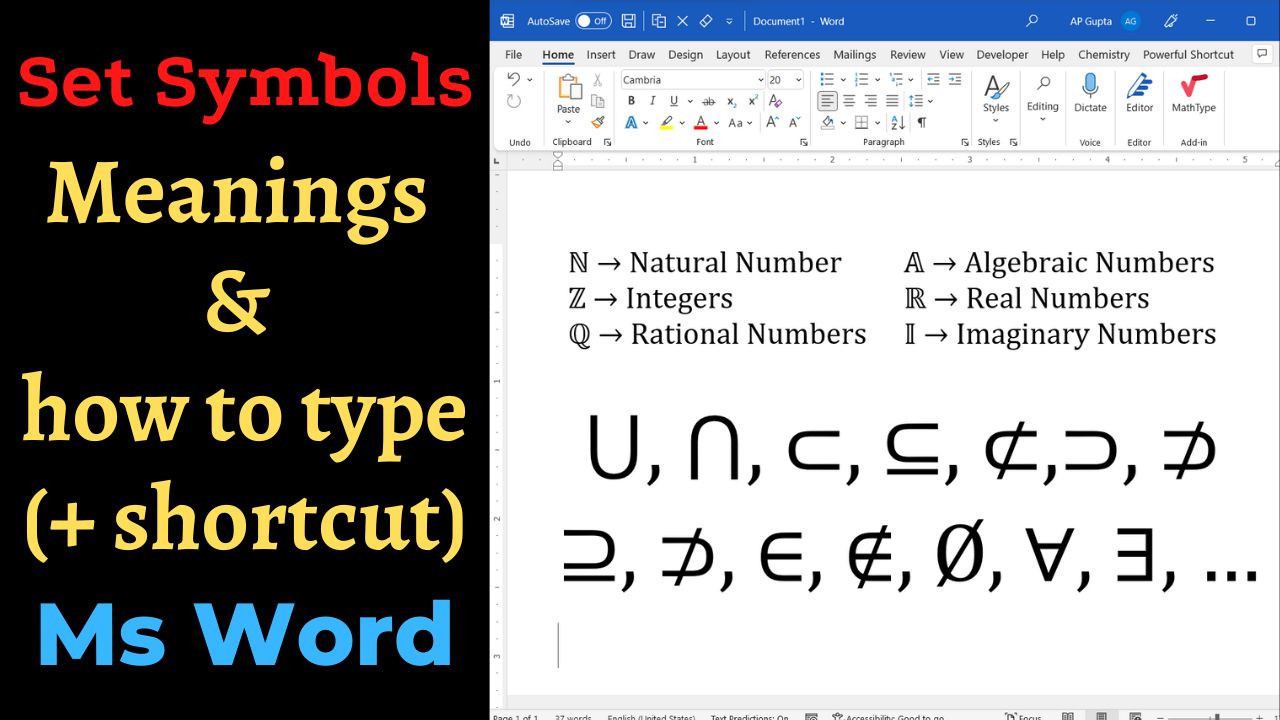
Common set-theory symbols include ∈ (element of), ∉ (not an element of), ⊂ (proper subset in many conventions), ⊆ (subset or equal), ∪ (union), ∩ (intersection), ∅ (empty set) and ℝ (real numbers). In Word, insert them using Insert > Symbol or the equation editor. Symbols can have convention-dependent meanings, so define ambiguous notation. These set symbols represent mathematical relationships concisely. The reference table below explains common notation and gives… Read More »Set Symbols in Word: Meaning, Unicode and Insertion Shortcuts
Set Symbols in Word: Meaning, Unicode and Insertion Shortcuts
Keep table on one page in Ms Word

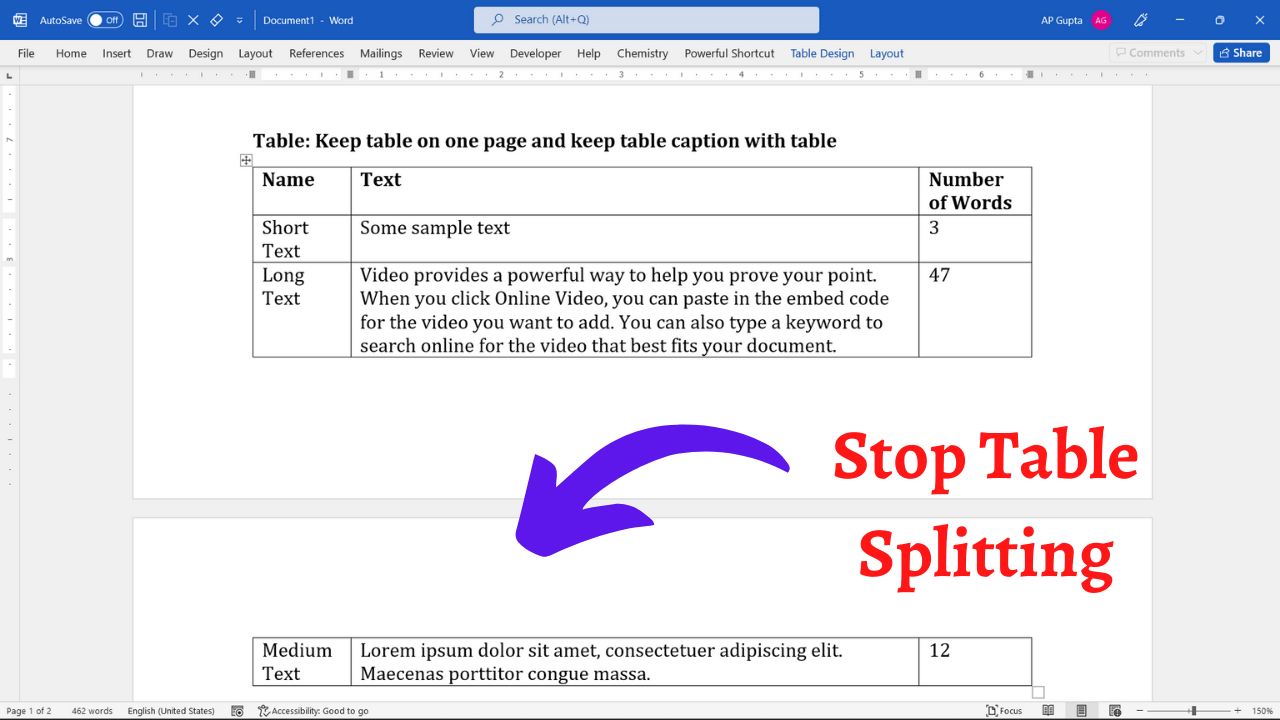
Quick answer: To keep a short table together on one page in Microsoft Word, select its rows, open Home → Paragraph → Line and Page Breaks, and enable Keep with next for the paragraphs in every row except the last. If the table is taller than the available page space, Word cannot fit it on one page without reducing its size, margins, or surrounding content. The steps below explain the… Read More »How to Keep a Table on One Page in Microsoft Word

How to Keep a Table on One Page in Microsoft Word

Table to Text

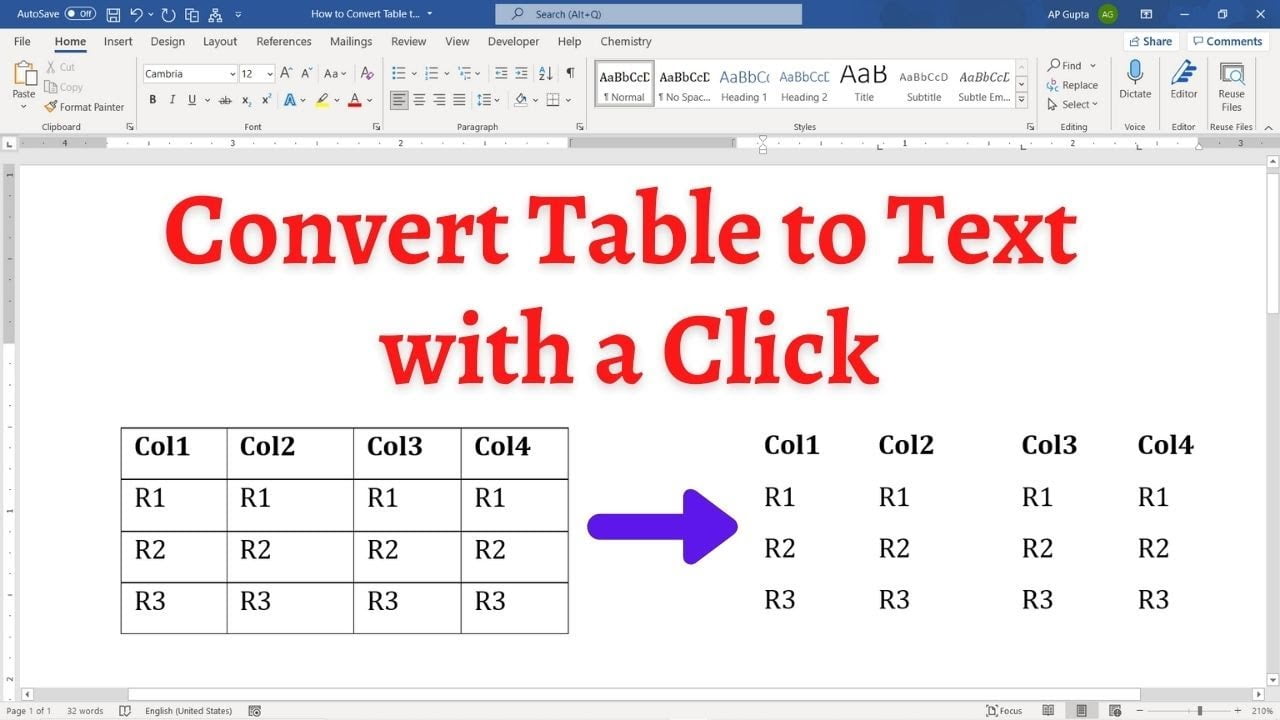
Quick answer: To convert a Word table into ordinary text, select the table, open the contextual Table Layout tab, and choose Convert to Text. Select a separator such as tabs or commas, then confirm. Word removes the table structure and places a separator between cell contents while keeping each table row on a separate line. Convert a Word Table to Text: Step-by-Step Select the table or the rows you want… Read More »How to Convert a Table to Text in Word (Windows and Mac)

How to Convert a Table to Text in Word (Windows and Mac)

Equilibrium sign in Word

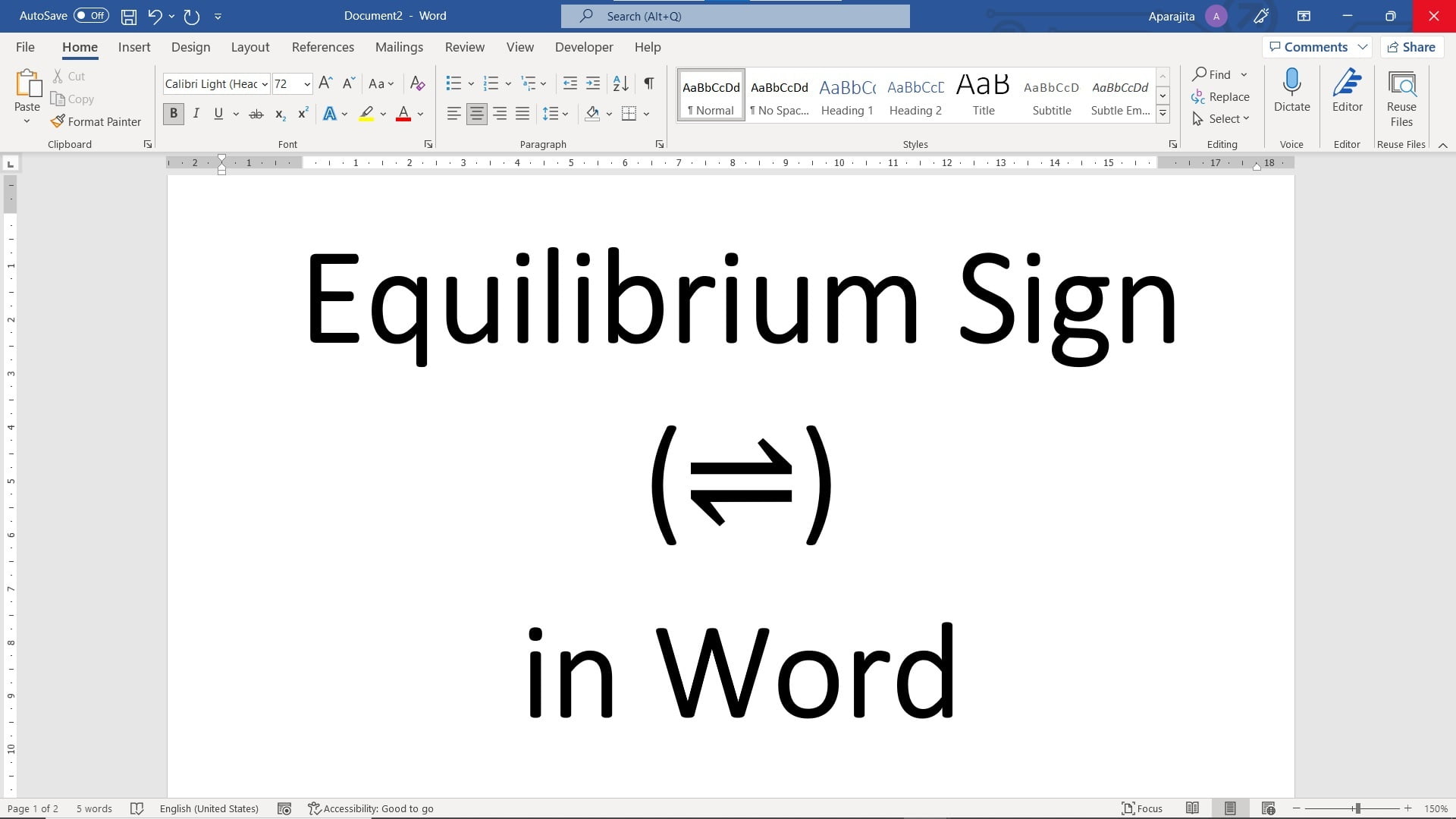
Quick answer: To type the equilibrium arrow ⇌ in desktop Microsoft Word for Windows, enter 21CC and press Alt+X. For the opposite-direction arrow ⇋, use 21CB and Alt+X. You can also insert these symbols from Word’s Symbol dialog or through Equation tools. This guide explains three practical methods and the important distinction between the two arrow forms. Three ways to insert an equilibrium arrow in Word Method 1: Insert the… Read More »How to Type the Equilibrium Arrow (⇌) in Microsoft Word

How to Type the Equilibrium Arrow (⇌) in Microsoft Word

accent in word

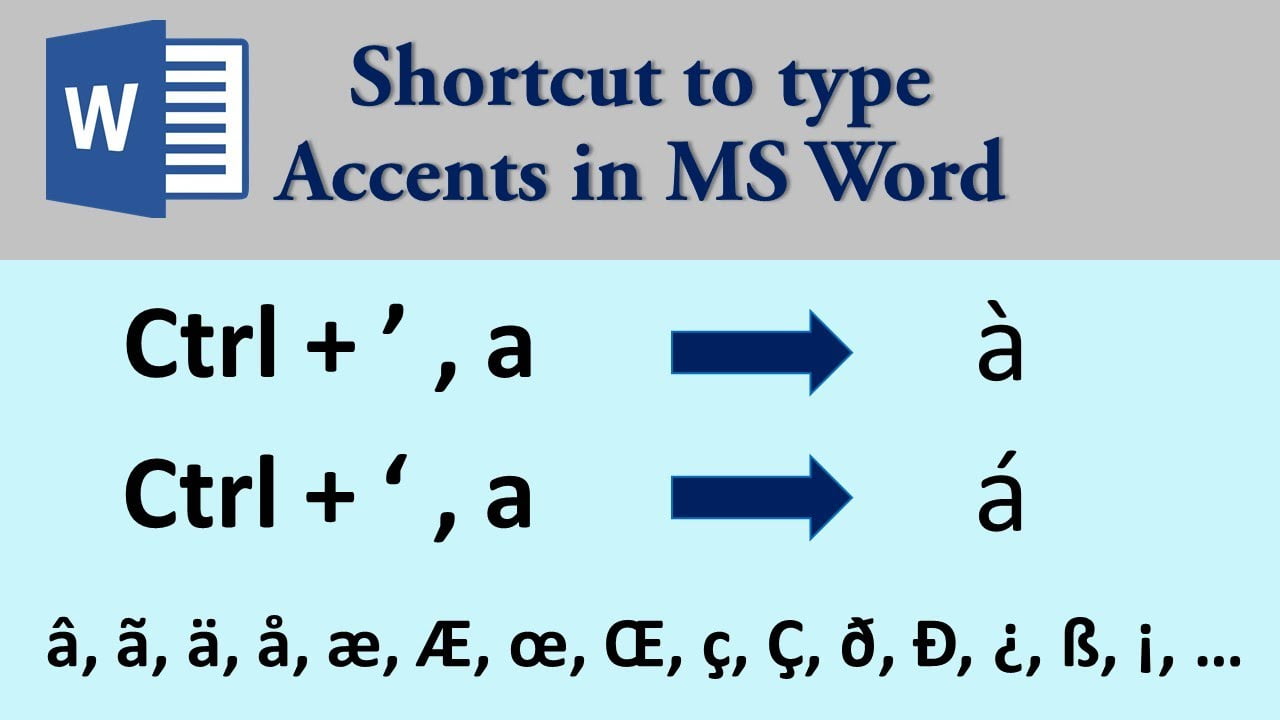
Quick answer: In desktop Microsoft Word for Windows, you can type many accented letters without opening the Symbol menu. For example, press Ctrl+`, release both keys, and then type e to insert è. For é, press Ctrl+’, release, and type e. Below is a reference table for common accent and special-character shortcuts, plus troubleshooting and alternative methods. The table covers many common Word accent shortcuts, but not every diacritical mark… Read More »How to Type Accents in Word: Keyboard Shortcuts for é, ñ, ü and More

How to Type Accents in Word: Keyboard Shortcuts for é, ñ, ü and More

  • by
how to insert a tick in word mac

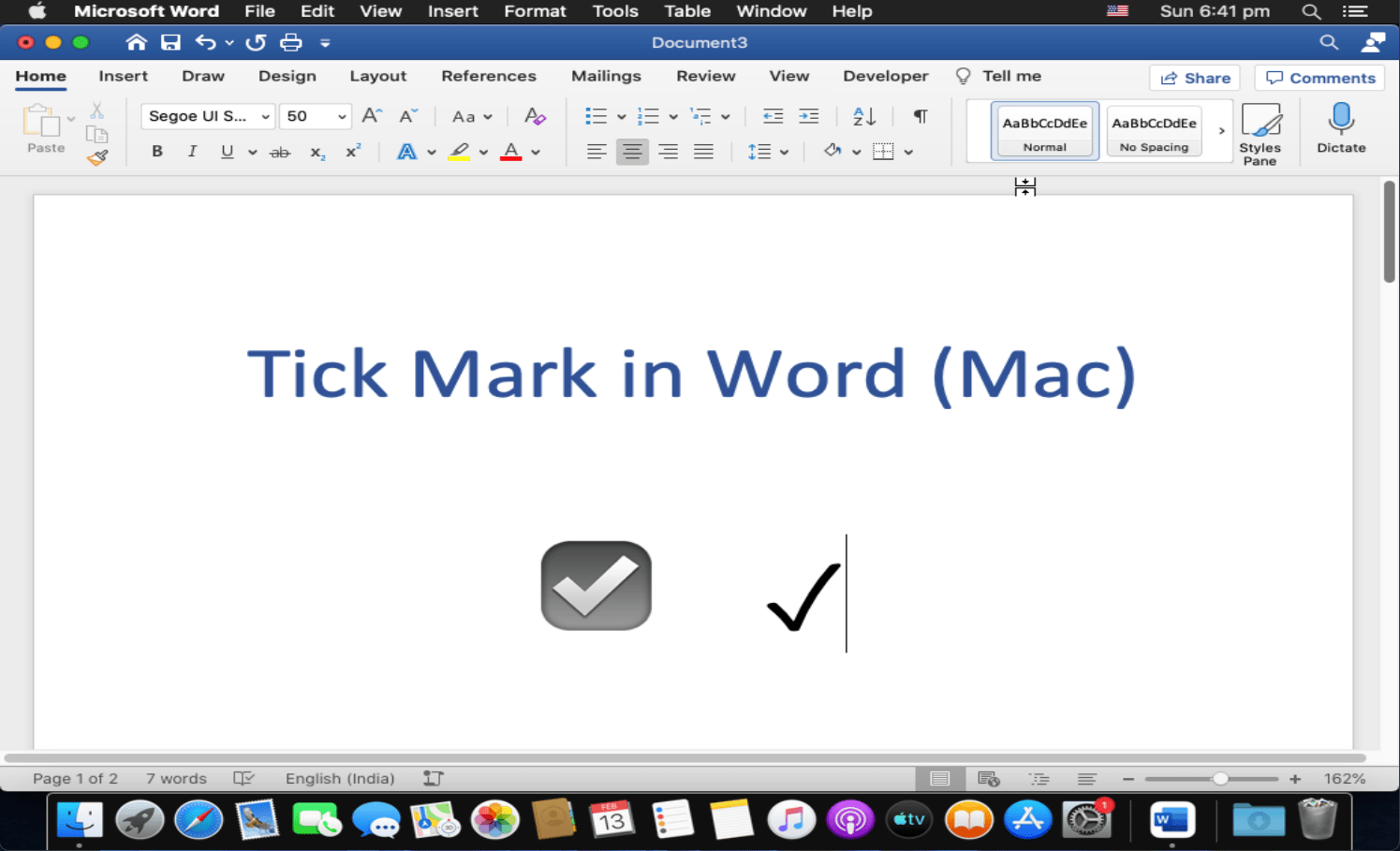
To insert a check mark in Word for Mac, copy and paste ✓ or use the macOS Character Viewer. Press Control+Command+Space where supported, search for “check mark,” then insert the symbol. You can also use Word’s Insert > Advanced Symbol or Symbol interface if available. For a portable check mark, prefer the macOS Character Viewer or copy the Unicode symbol ✓ (U+2713). The Symbol dialog is an alternative when you… Read More »How to Insert a Check Mark (✓) in Word for Mac

How to Insert a Check Mark (✓) in Word for Mac

Quick answer: If the fill handle (the small square at the bottom-right of a selected cell) is missing in Excel for Windows, open File → Options → Advanced, then enable Enable fill handle and cell drag-and-drop under Editing options. The fill handle helps copy formulas, extend sequences, and fill adjacent cells. This setting is different in Excel for Mac and Excel for the web. How to Show the Fill Handle… Read More »How to Enable the Fill Handle in Excel (Windows and Mac)

How to Enable the Fill Handle in Excel (Windows and Mac)

  • by
blacked out numbers in heading

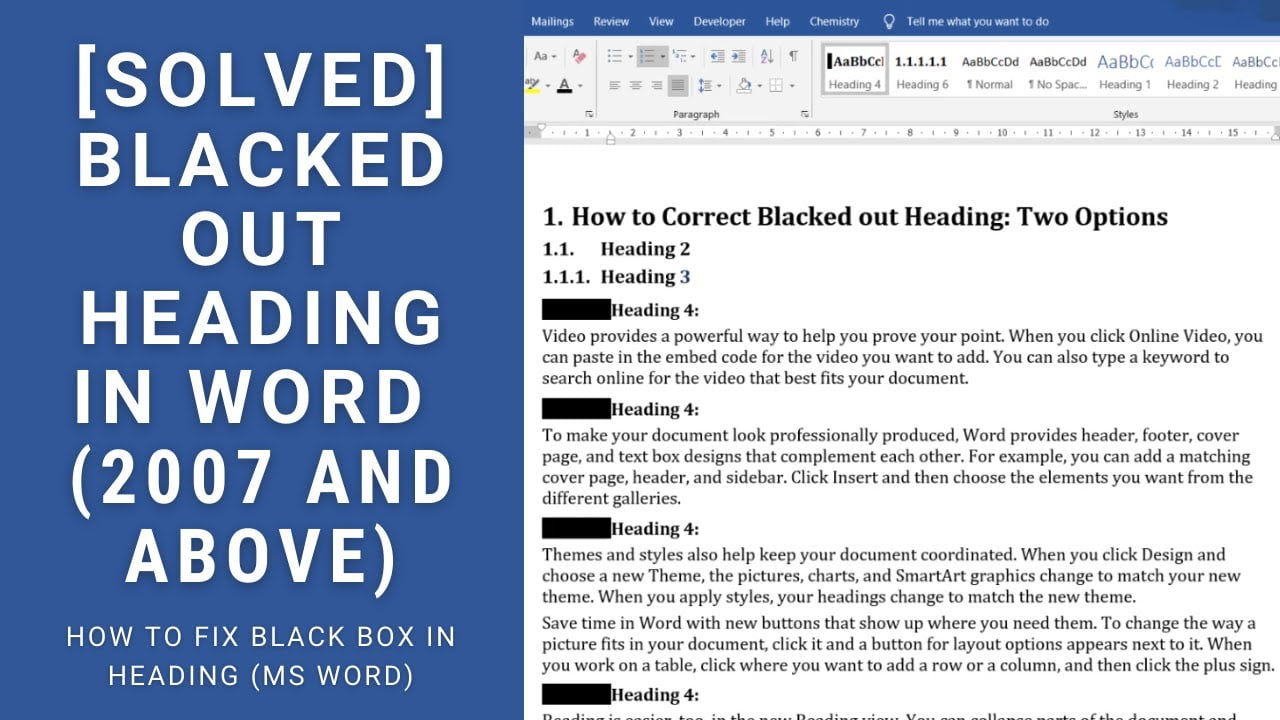
Quick answer: If a Microsoft Word heading shows a solid black box instead of its number, the issue may involve the heading’s numbering or multilevel-list formatting. First try selecting the affected heading and reapplying its heading style. If the problem returns, inspect the multilevel list linked to your heading styles. Save a copy before changing numbering, especially in a long document. This problem has been discussed in the Super User… Read More »How to Fix Black Boxes Instead of Heading Numbers in Microsoft Word

How to Fix Black Boxes Instead of Heading Numbers in Microsoft Word

Sorting Columns in Excel

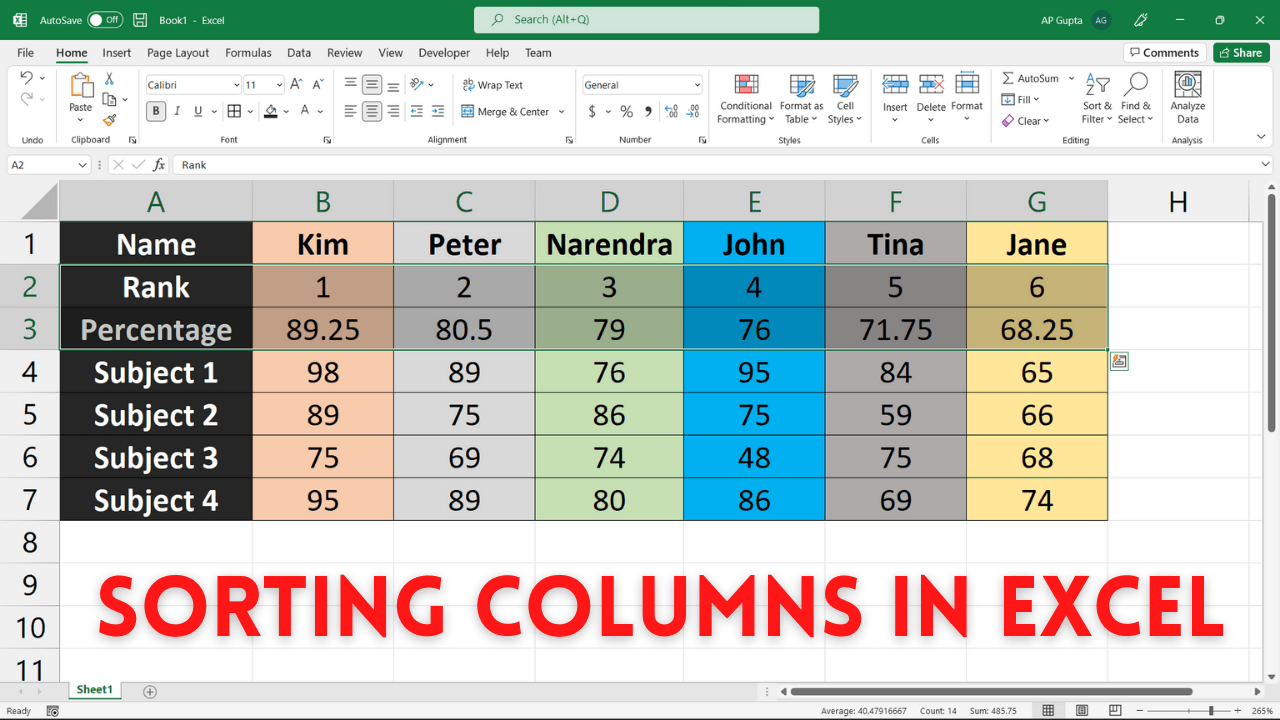
Quick answer: To sort columns from left to right in desktop Excel for Windows, select the complete data range, open Data → Sort → Options, choose Sort left to right, and then select the row whose values should determine column order. This is different from Excel’s usual top-to-bottom sort. The tutorial includes screenshots and a video demonstration. Example Data: Students and Percentage Scores Suppose each student occupies a column, while… Read More »How to Sort Columns Left to Right in Excel

How to Sort Columns Left to Right in Excel