Learn Python map() with correct examples for lists and multiple iterables, comparison with loops, and realistic performance guidance.
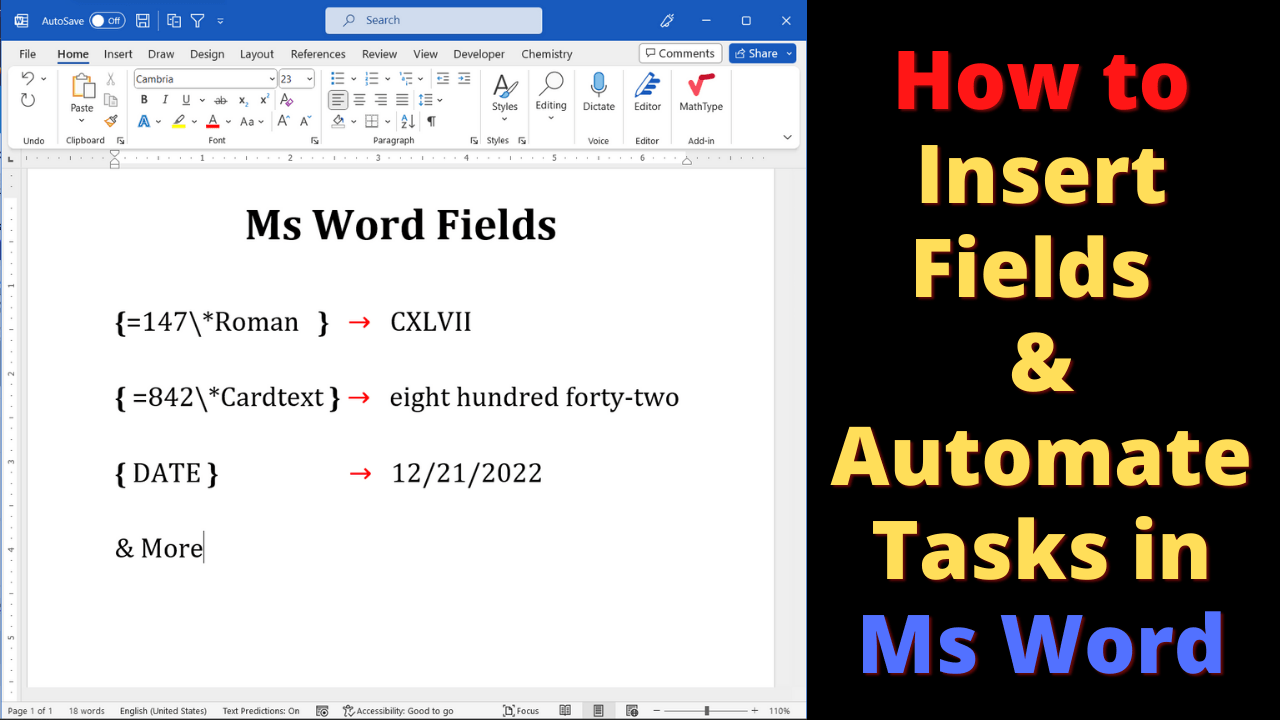
Microsoft Word fields can insert automatically calculated information such as page numbers, dates and cross-references. Learn how to insert field codes correctly, update results, and choose fields that match your document’s purpose. Two ways to insert fields in Microsoft Word Fields power dynamic information such as page numbers, dates, references, and parts of tables of contents. Unlike ordinary text, field results can change when Word updates them. You can insert… Read More »How to Insert and Use Fields in Microsoft Word (Examples)
How to Insert and Use Fields in Microsoft Word (Examples)
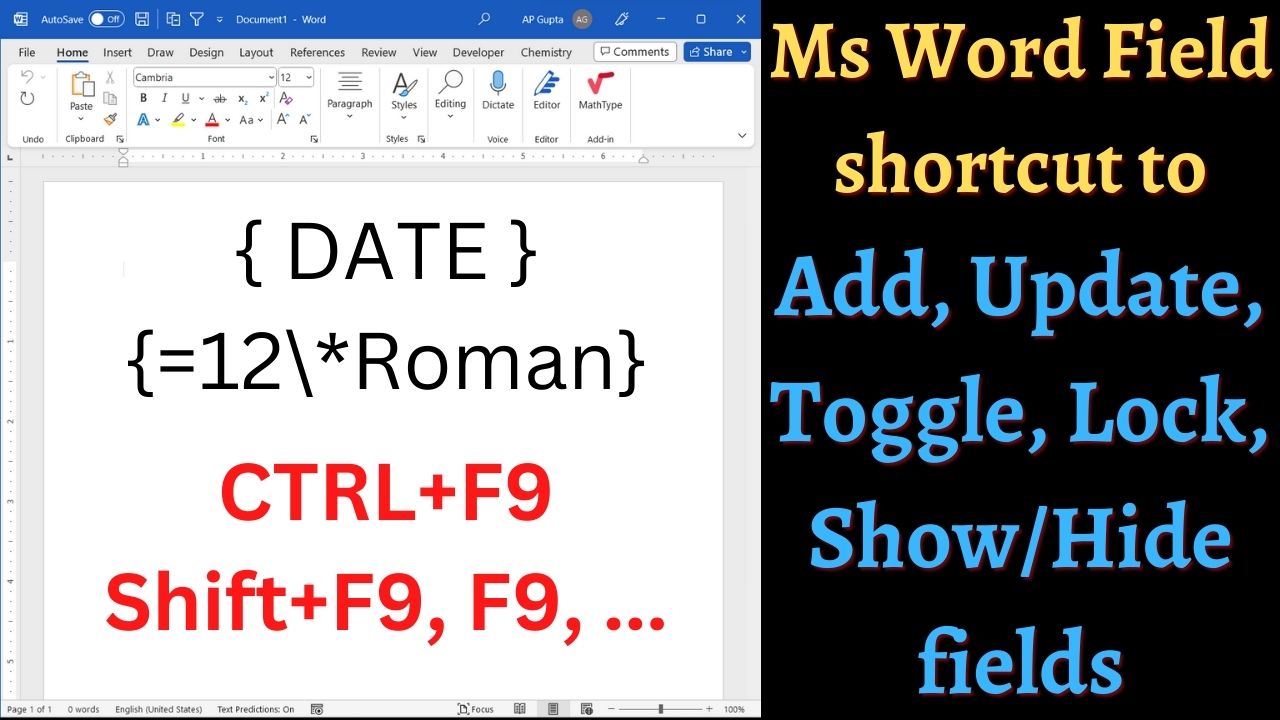
Microsoft Word fields insert automatically calculated information such as page numbers, dates, cross-references and document properties. This reference compares desktop Word shortcuts on Windows and Mac, explains which keys update or lock fields, and shows how to avoid converting a dynamic field into ordinary text. Shortcuts may differ in Word for the web and on Mac keyboards that use function keys for system controls. Word field keyboard shortcuts for Windows… Read More »Microsoft Word Field Shortcuts: Insert, Update and Toggle Codes
Microsoft Word Field Shortcuts: Insert, Update and Toggle Codes
Quick answer: In Microsoft Word, press Ctrl+F on Windows or Command+F on Mac, type the word or phrase, and use the search pane’s next-result arrow or click a matching result. Desktop Word also supports Shift+F4 to repeat the previous Find or Go To action in supported contexts; it is not a universal replacement for the pane’s Next control. Find the next match using the Navigation pane Repeat Find with Shift+F4… Read More »Find Next in Microsoft Word: Keyboard Shortcuts for Windows and Mac
Find Next in Microsoft Word: Keyboard Shortcuts for Windows and Mac
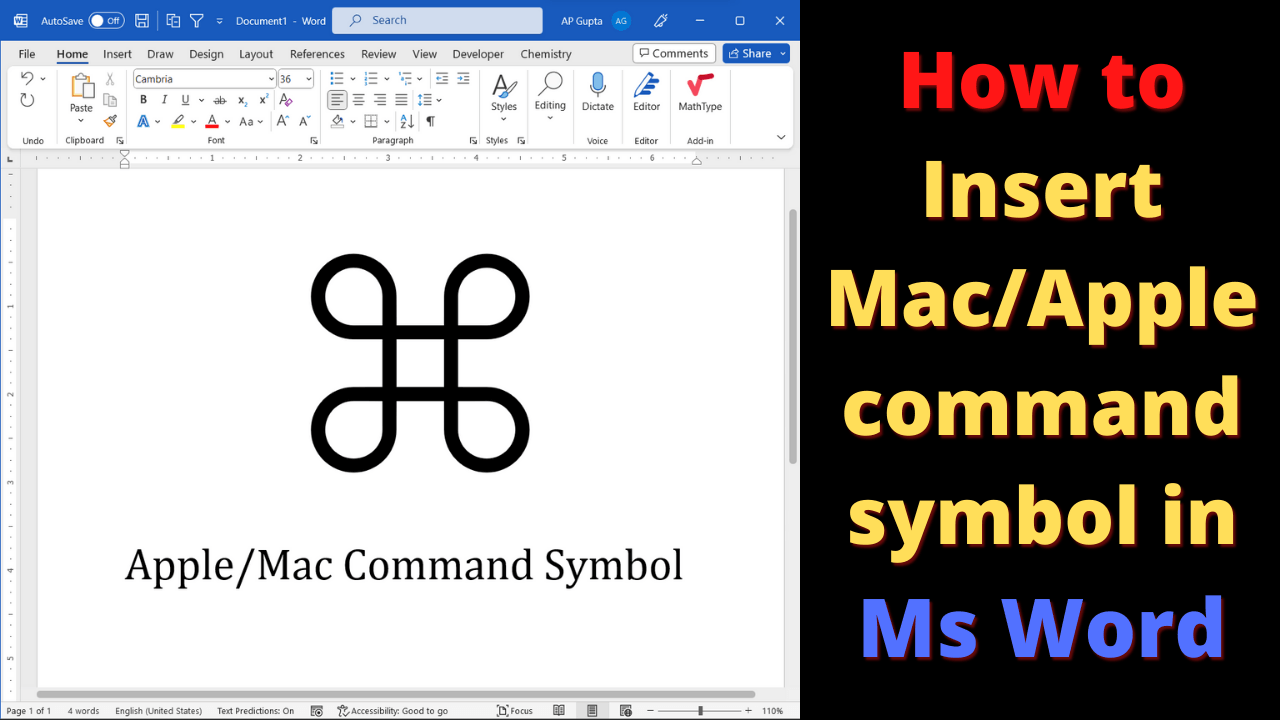
The Command symbol ⌘ is Unicode U+2318, commonly used to represent the Command key on Apple keyboards. You can copy the symbol directly, insert it from Word’s symbol picker, or use Word for Windows’ Unicode conversion shortcut. Quick answer: copy ⌘ directly. In desktop Word for Windows, type 2318 and press Alt + X. On a Mac, open the Character Viewer (Control + Command + Space, or choose Edit >… Read More »How to Type the Command Symbol (⌘) in Word on Mac and Windows
How to Type the Command Symbol (⌘) in Word on Mac and Windows
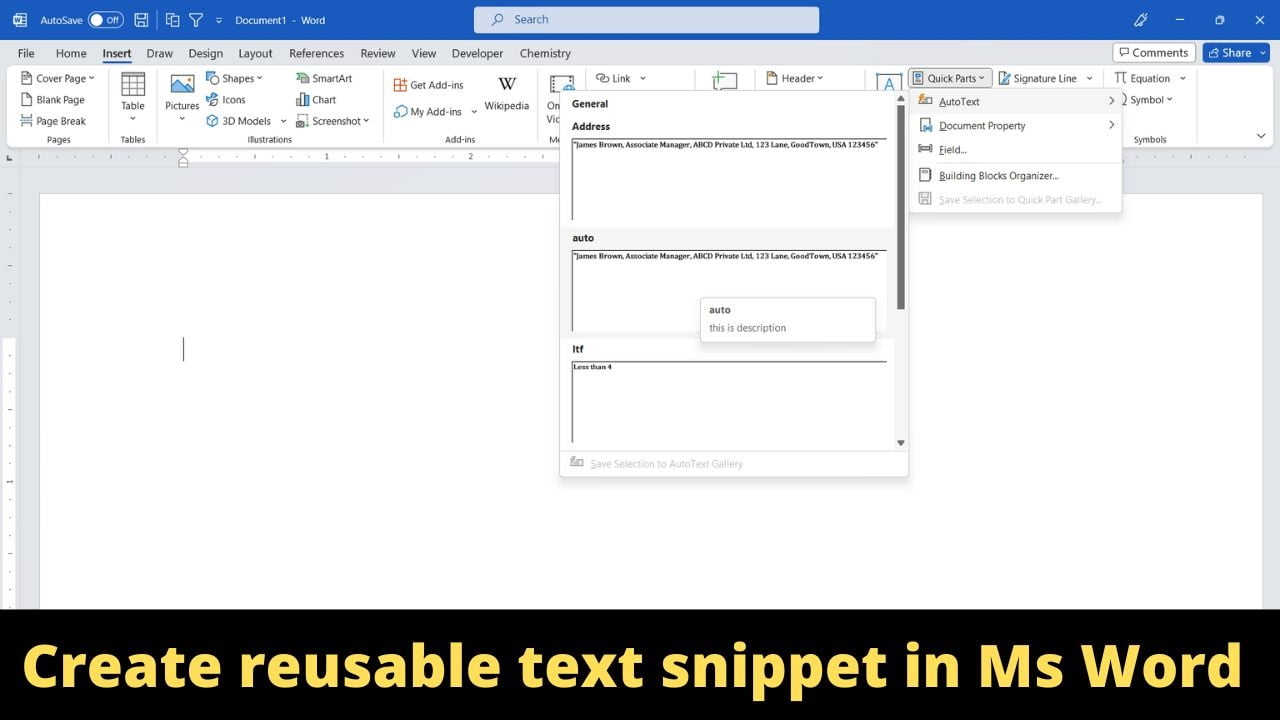
AutoText lets you save reusable text and formatting as a building block in desktop Microsoft Word. This guide explains how to create an entry, insert it repeatedly, and troubleshoot templates and differences between Windows and Mac. For example, save the following contact block as an AutoText entry named Address so you can reuse it in future documents. “James Brown, Associate Manager, ABCD Private Ltd, 123 Lane, GoodTown, USA 123456” How… Read More »How to Create and Insert AutoText in Microsoft Word
How to Create and Insert AutoText in Microsoft Word
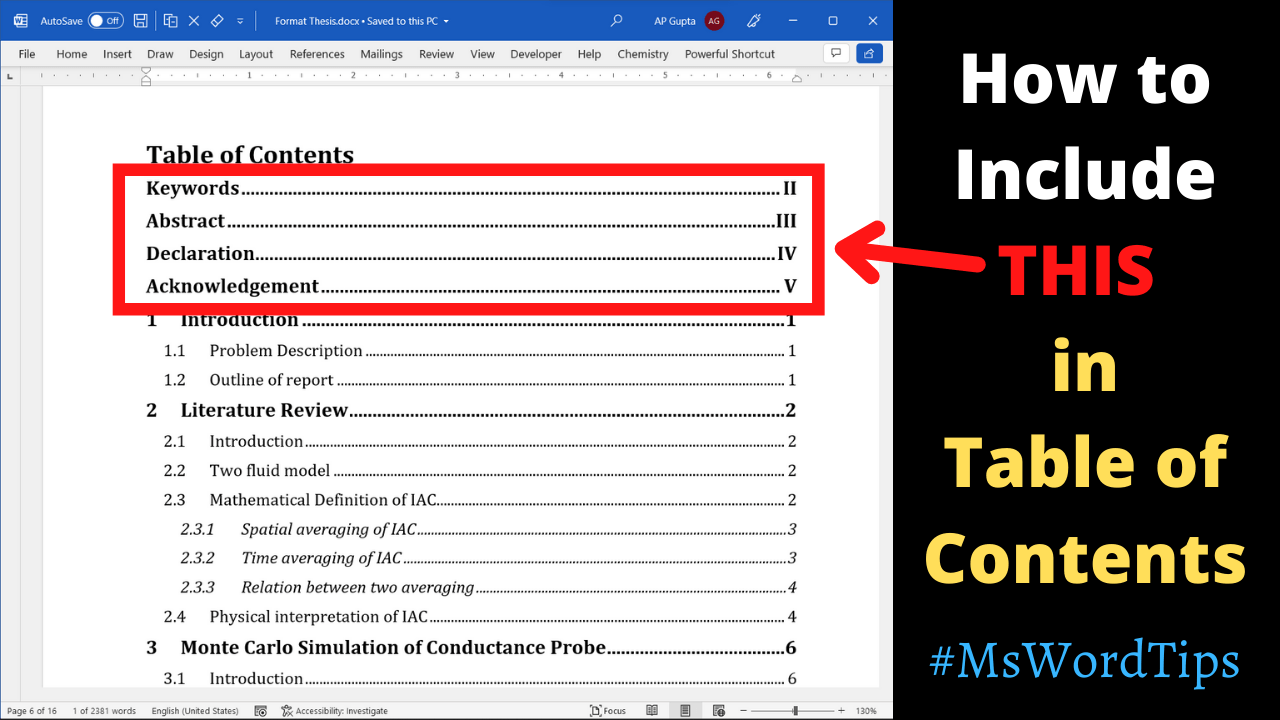
An abstract, acknowledgements or references heading can appear in a Microsoft Word table of contents without becoming a numbered chapter. The safest method depends on how the document’s heading styles and multilevel numbering are configured. Method 1: Add an unnumbered abstract to the table of contents These steps apply to desktop Word and retain the existing illustrated workflow. They are useful when you want an Abstract or Acknowledgements entry at… Read More »How to Add an Abstract or Unnumbered Heading to a Word TOC
How to Add an Abstract or Unnumbered Heading to a Word TOC
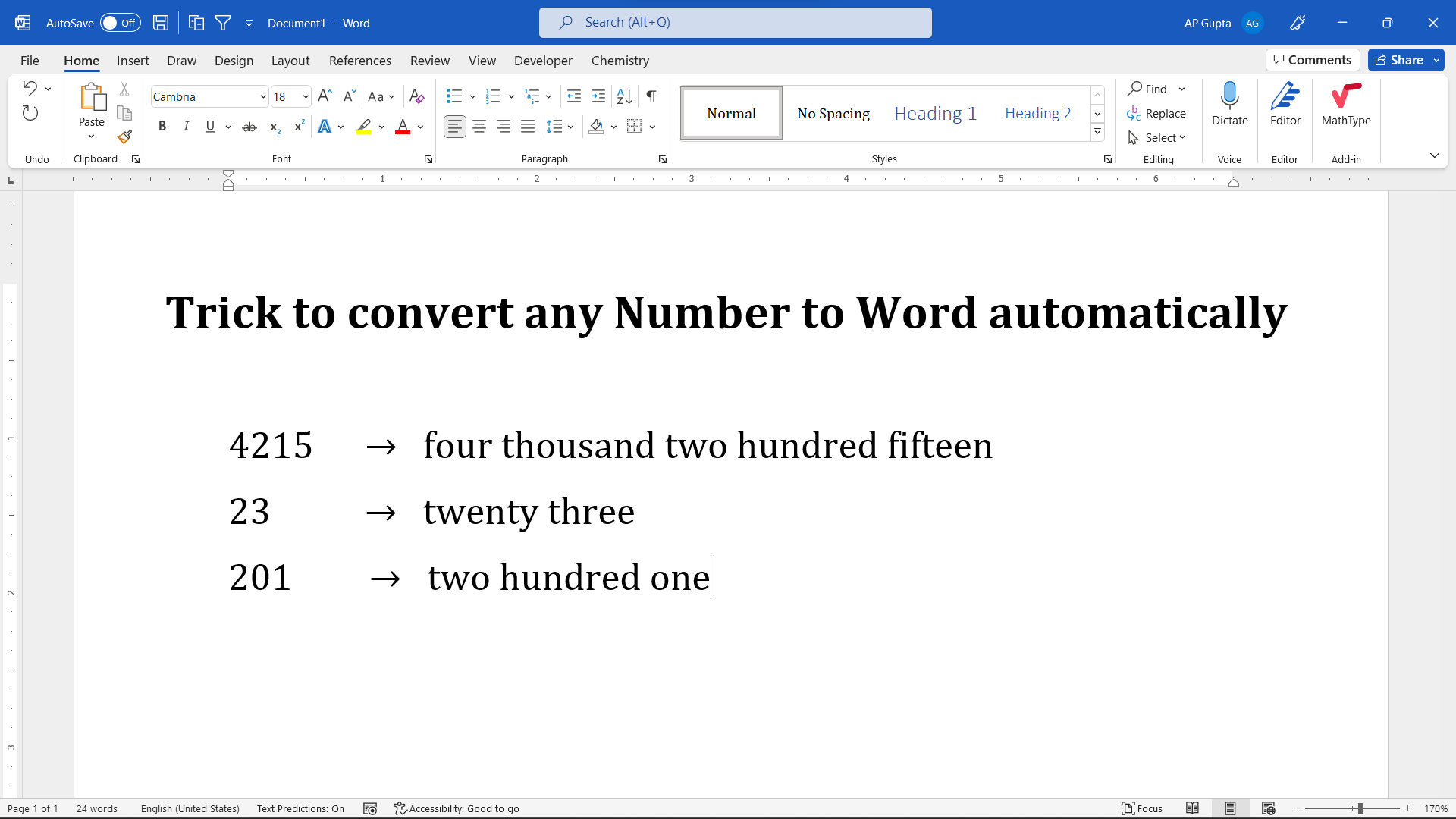
Microsoft Word can spell out certain numeric values with a field-code switch. Use a real field, not manually typed braces, and apply the \* CardText switch to a numeric field result. This is useful for simple document text, but it is not a substitute for verified financial amount formatting. Convert a number to words with Word’s CardText field The following procedure is for desktop Microsoft Word. Example: convert 1234 into… Read More »Convert Numbers to Words in Word Using a Field Code
Convert Numbers to Words in Word Using a Field Code
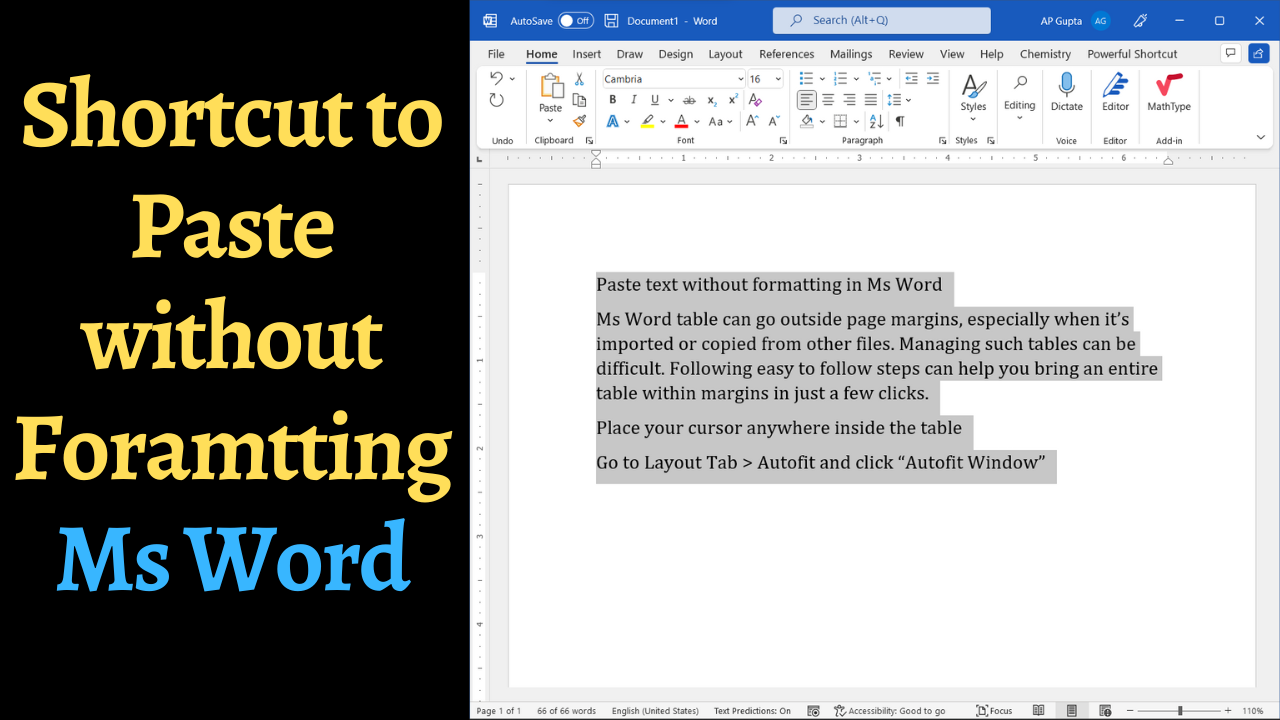
To paste text without carrying over fonts, colors or hyperlinks, use Word’s Keep Text Only paste option. Word for Microsoft 365 may also support Ctrl + Shift + V on Windows or Command + Shift + V on Mac, but availability varies by version and configuration. Paste as plain text: shortcuts and Paste Options Most reliable method: select Home > Paste > Keep Text Only. In supported Microsoft 365 desktop… Read More »Paste Without Formatting in Word: Windows and Mac Methods
Paste Without Formatting in Word: Windows and Mac Methods
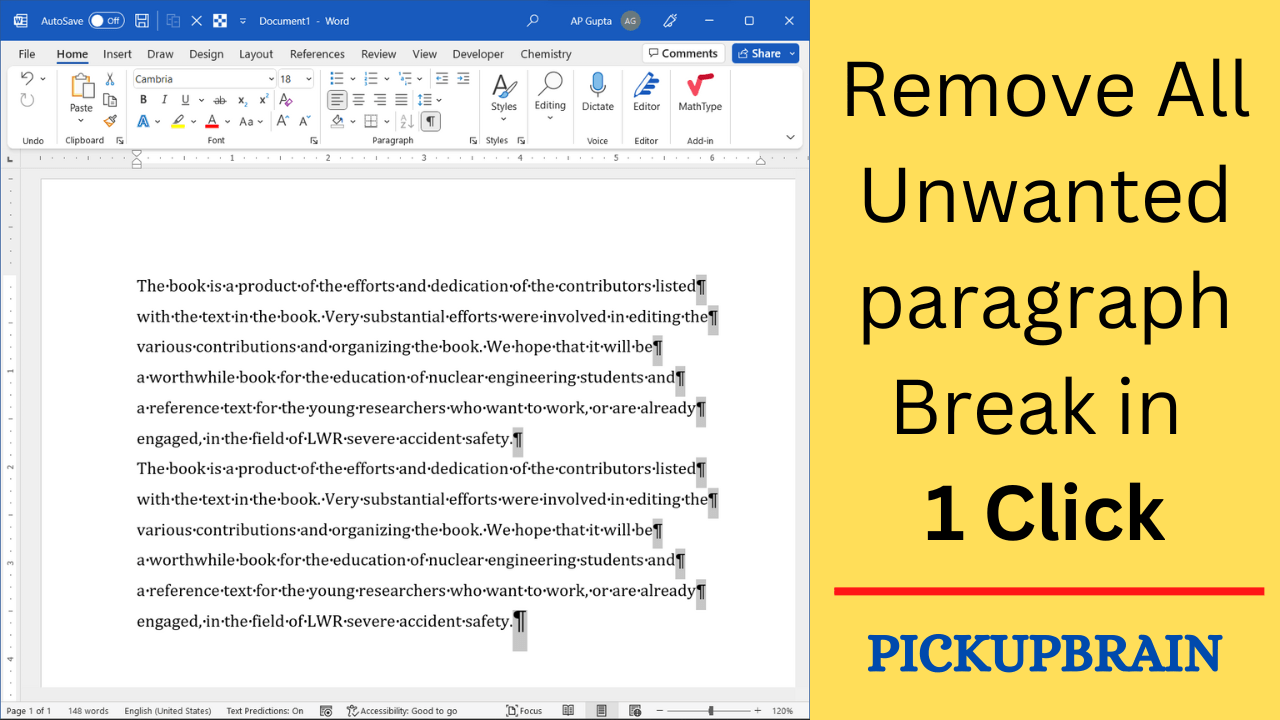
Remove unwanted line and paragraph breaks in Word using Find and Replace (^l and ^p), with safe steps and an optional VBA macro method.