Skip to content
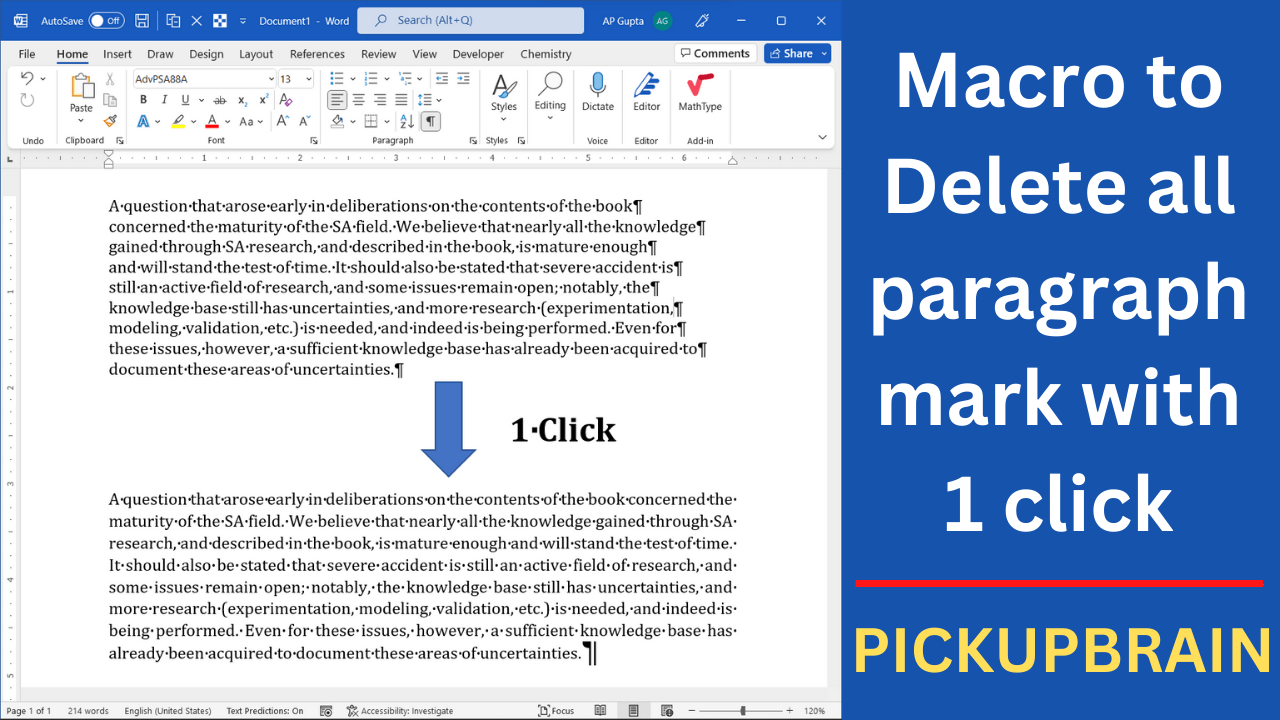
Macro to delete all new line character from selected text in 1 click

Text copied from PDFs often contains unwanted manual line breaks (Shift+Enter). This Word VBA macro replaces only manual line breaks in selected text with spaces, preserving paragraph boundaries. Make a backup and select a short passage first; do not remove genuine paragraph marks just to join lines. Before running the macro Turn on formatting marks (Home > ¶) to distinguish manual line breaks (↵) from paragraph marks (¶). Use Find… Read More »Word VBA Macro to Remove Line Breaks from Selected Text
Word VBA Macro to Remove Line Breaks from Selected Text
Quick answer: To insert a blank page in desktop Microsoft Word, place the cursor where the new page should begin and choose Insert → Blank Page. To force text onto the next page, insert a page break instead: Ctrl+Enter on Windows or Command+Return on Mac. These commands are related but not identical; a page break does not always create a separate empty page. Method 1: Start a new page with… Read More »How to Insert a Blank Page in Word (Windows and Mac)

How to Insert a Blank Page in Word (Windows and Mac)

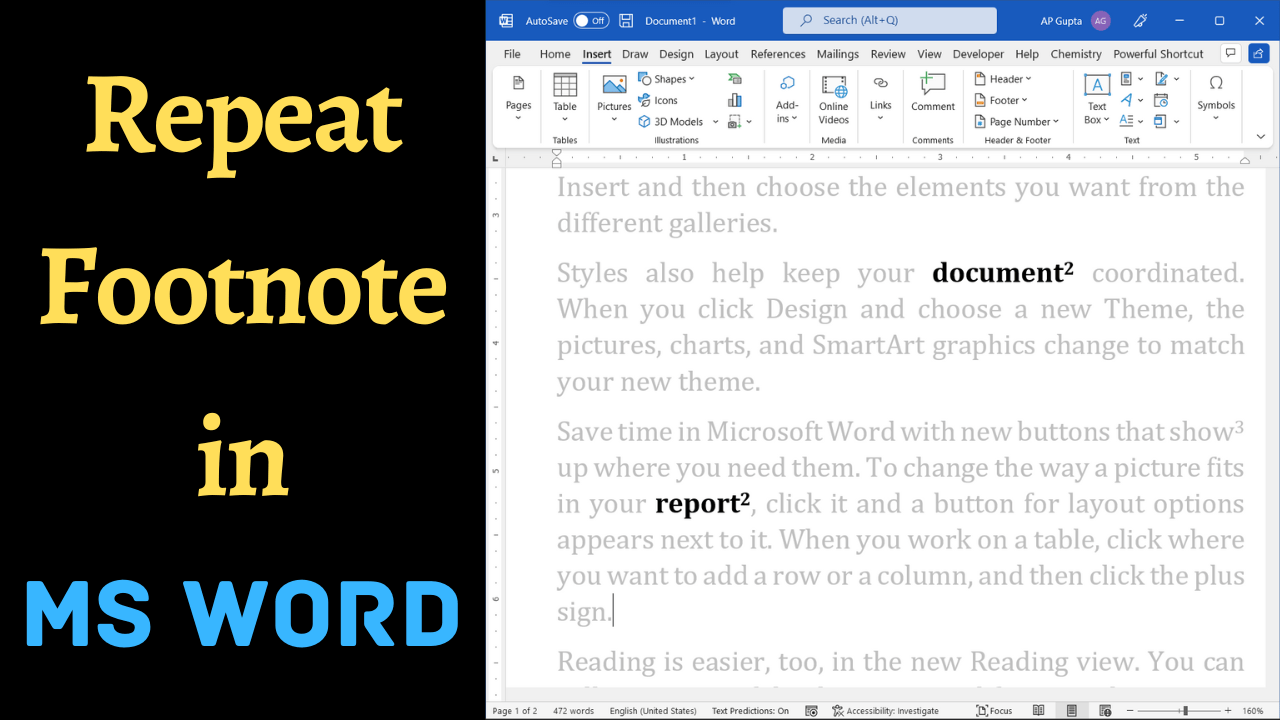
Repeat footnote in Ms Word

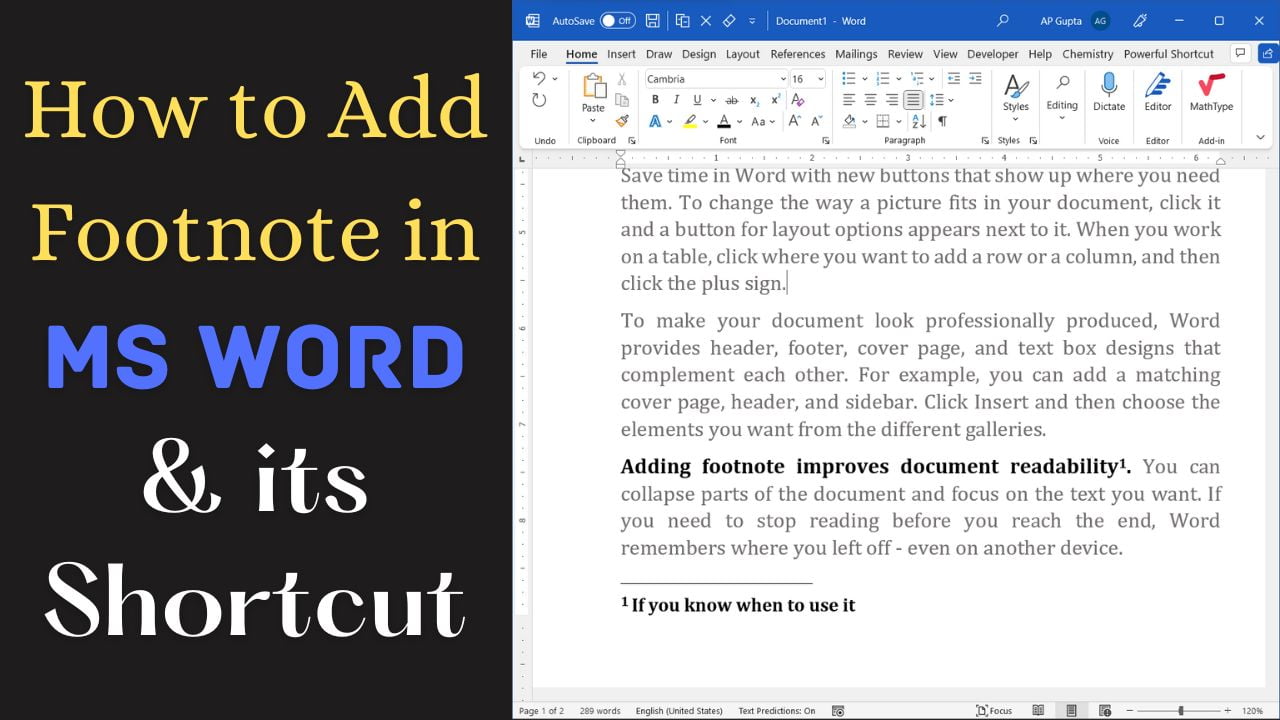
Quick answer: To cite an existing footnote again in desktop Microsoft Word, insert a cross-reference to its footnote number instead of creating a duplicate footnote. Place the cursor where the repeated reference belongs, choose Insert → Cross-reference (or References → Cross-reference in some versions), select Footnote as the reference type, and insert the appropriate footnote number. The second marker points to the original note rather than adding a new note.… Read More »How to Reference the Same Footnote Twice in Microsoft Word

How to Reference the Same Footnote Twice in Microsoft Word

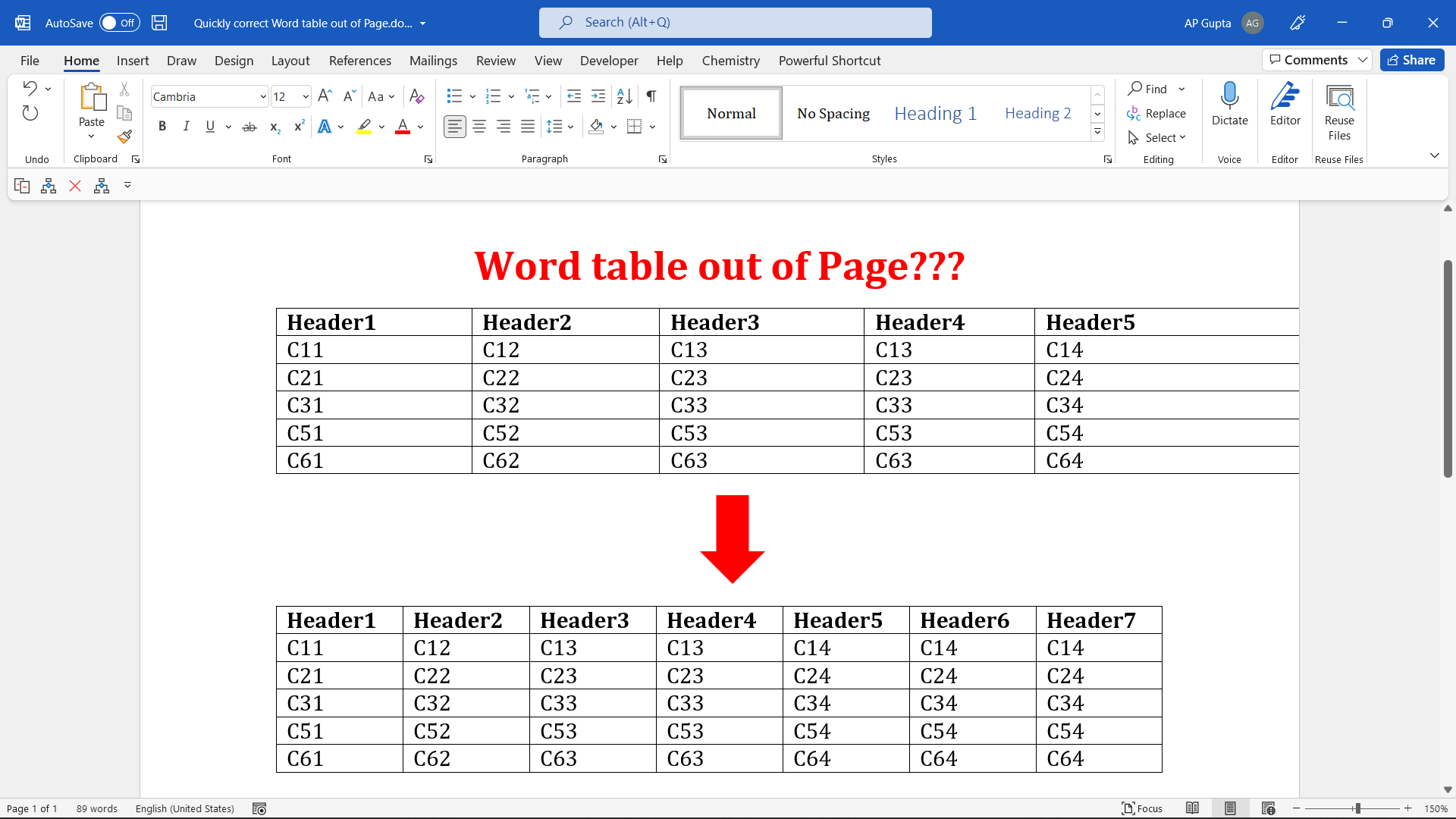
Quick answer: If a table extends beyond the right page margin in desktop Microsoft Word, click inside it and choose Table Layout → AutoFit → AutoFit Window. Word adjusts the table width to fit the available page area. If the table still overflows, check its preferred width, indentation, and long unbreakable cell contents. Click anywhere inside the table. If the table is partly off-screen, click a visible cell On the… Read More »How to Fix a Word Table That Extends Beyond Page Margins

How to Fix a Word Table That Extends Beyond Page Margins

How-to-turn-on-spell-check-in-Ms-Word-Mac.

Quick answer: If Word for Mac does not underline misspelled words, first check whether proofing is disabled for the selected text. Then open Word → Settings (or Preferences) → Spelling & Grammar and enable Check spelling as you type. The menu wording can vary by Word version. These steps help distinguish document-specific proofing exclusions from application-wide spelling settings. 1. Enable spelling checks for the selected text Select the text on… Read More »Spell Check Not Working in Word for Mac? How to Turn It On

Spell Check Not Working in Word for Mac? How to Turn It On

Thumbnail

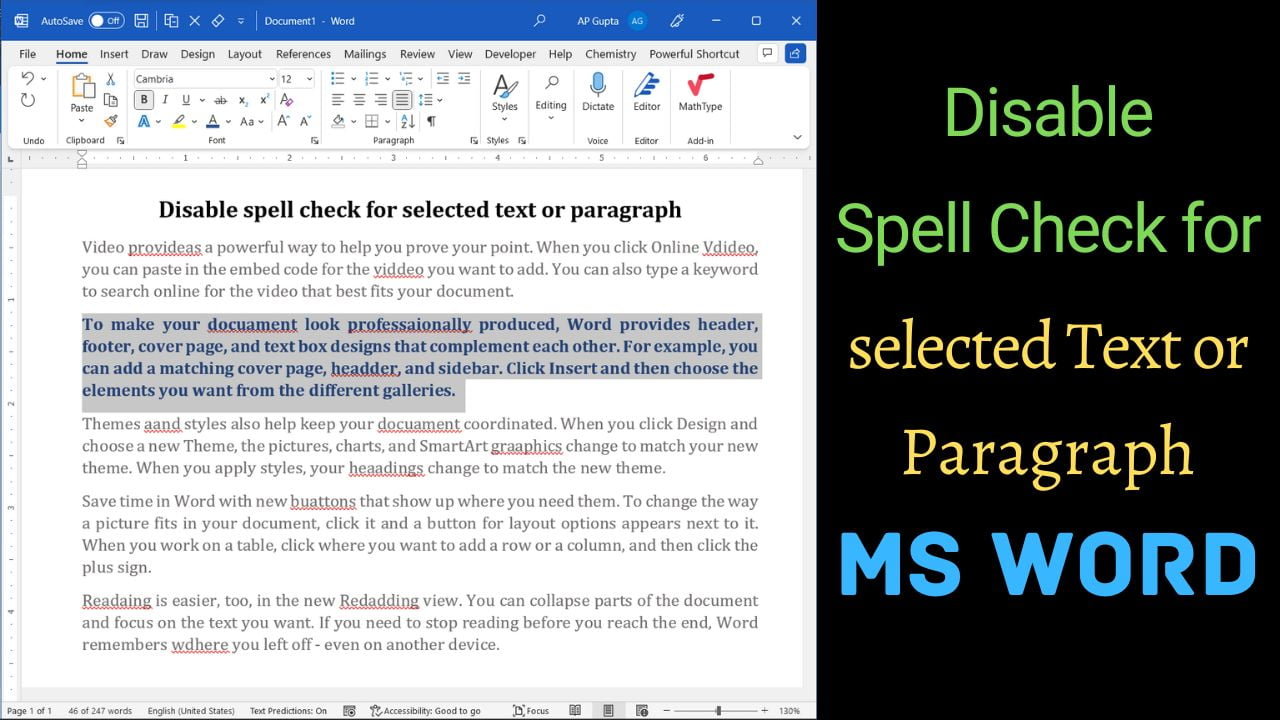
Quick answer: To stop Microsoft Word from checking spelling and grammar in only one paragraph or selected passage, select that text, go to Review → Language → Set Proofing Language, select Do not check spelling or grammar, and click OK. This changes proofing for the selected text, not the whole document. It is useful for code, technical terms, quotations, and passages in a language you do not want Word to… Read More »How to Turn Off Spell Check for Selected Text in Word

How to Turn Off Spell Check for Selected Text in Word

Comments help reviewers discuss a passage without changing the document text. Select text or place the insertion point, choose Review > New Comment, type your note and post it. In Word for Windows, Ctrl+Alt+M commonly inserts a new comment; shortcut availability differs by platform and version. How to insert a comment in Word In Word for Windows, Mac or the web, open a document where you have commenting permission: Select… Read More »How to Add Comments in Microsoft Word: Windows and Mac Shortcuts

How to Add Comments in Microsoft Word: Windows and Mac Shortcuts

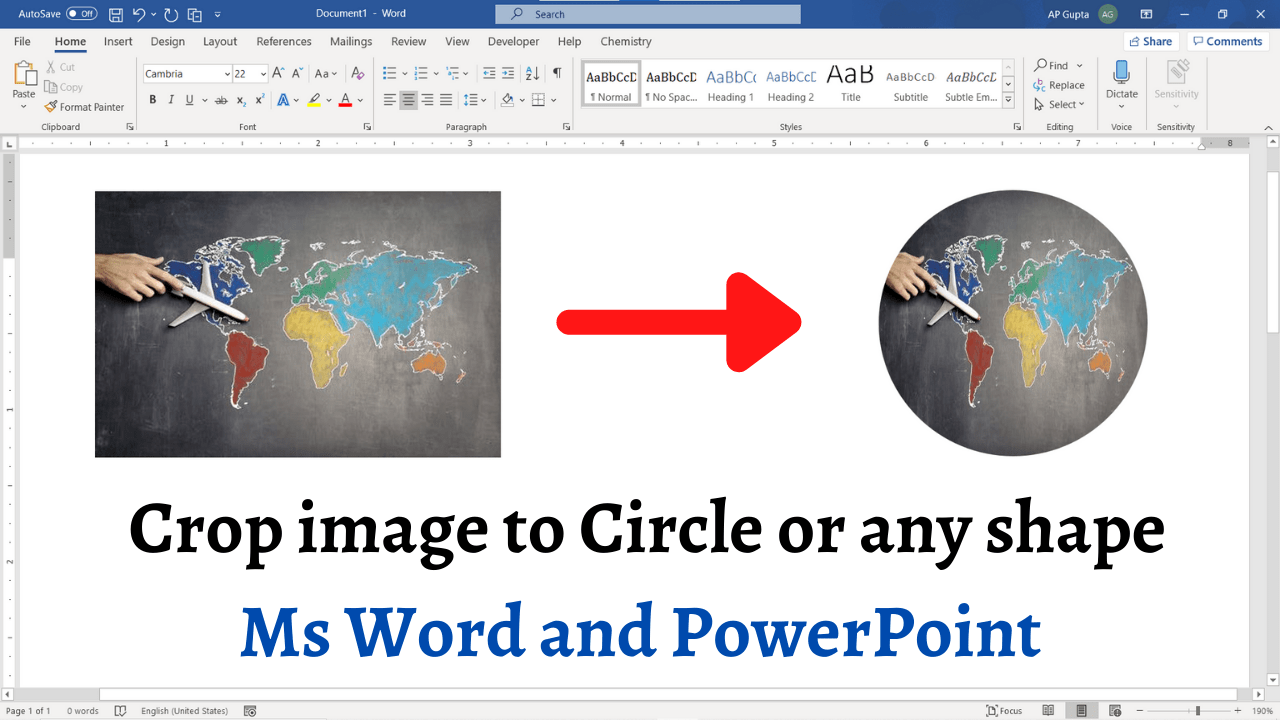
How to crop image to any shape in Ms Word or Powerpoint

To crop a photo into a circle in recent desktop versions of Word or PowerPoint, select the image, choose Picture Format > Crop > Crop to Shape > Oval, then use Crop > Aspect Ratio > 1:1 for a true circle. You can also insert a shape and fill it with an image when that workflow is more suitable. Method 1: Fill a drawn shape with a picture Go to… Read More »How to Crop a Picture into a Circle or Shape in Word and PowerPoint

How to Crop a Picture into a Circle or Shape in Word and PowerPoint

How-to-prevent-word-table-jumping-to-next-page-4-Problems-and-their-solution-solved

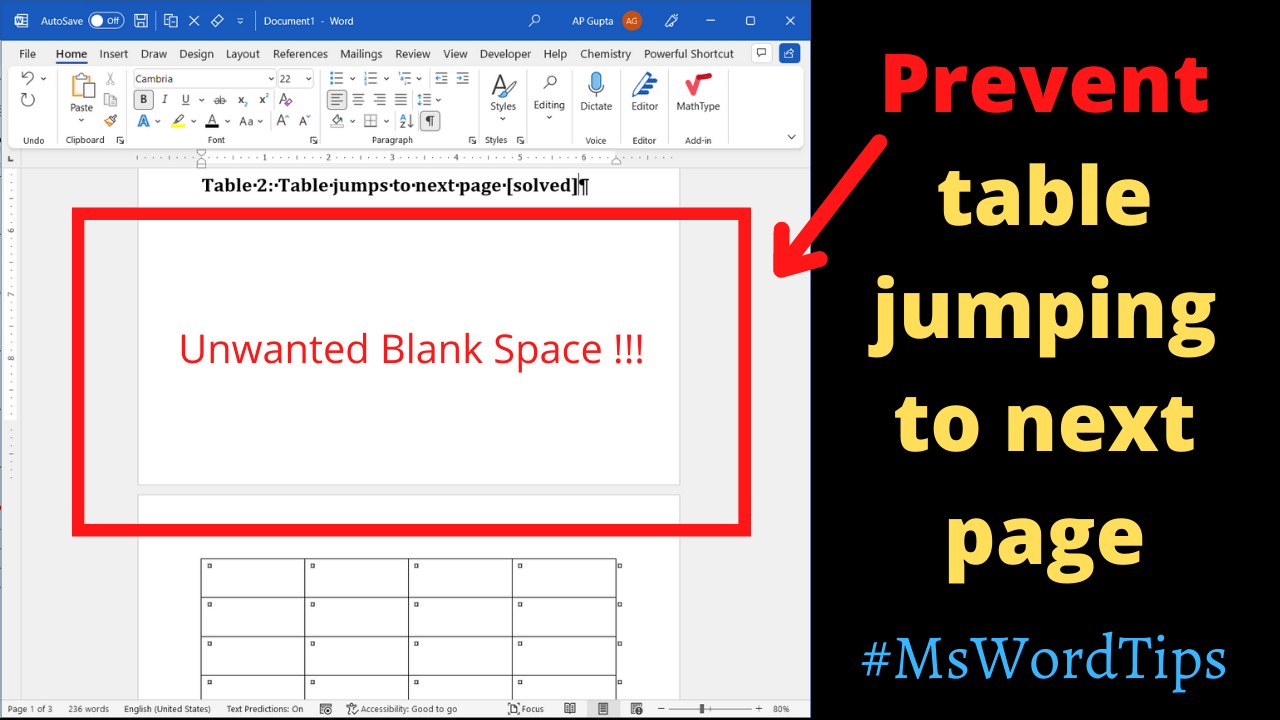
If a Microsoft Word table jumps to the next page despite apparent space above it, inspect paragraph pagination settings, repeated header rows, table wrapping and row-splitting rules. The cause is often a paragraph’s Keep with next or Page break before setting rather than an actual page break. Why a Word table may start on the next page My Ms Word table was always jumping to next page even after having… Read More »Word Table Starts on the Next Page? Fix the Layout and Pagination

Word Table Starts on the Next Page? Fix the Layout and Pagination